

How to Integrate Lightyear
How the Integration Works
Lightyear gives you a report of what you bought and what you paid. Chef Notepad reads that report and matches each line to the ingredients in your account. You can bring it in two ways:
• Update Prices: updates the price of any ingredient that already exists in your account. It never creates anything new.
• Import CSV: updates the price of ingredients that already exist, and creates a new ingredient for anything it does not recognise.
Chef Notepad identifies your ingredients using these details from the Lightyear file:
• Product code (found on your Lightyear invoice)
• Supplier name
• Description (this becomes the ingredient name)
• Unit price, excluding tax (for example per kg, box or litre)
You do not need to edit the file. Export it from Lightyear and bring it straight into Chef Notepad as a CSV file.
Before you start
It is important that these details are entered correctly when you first create an ingredient in Chef Notepad.
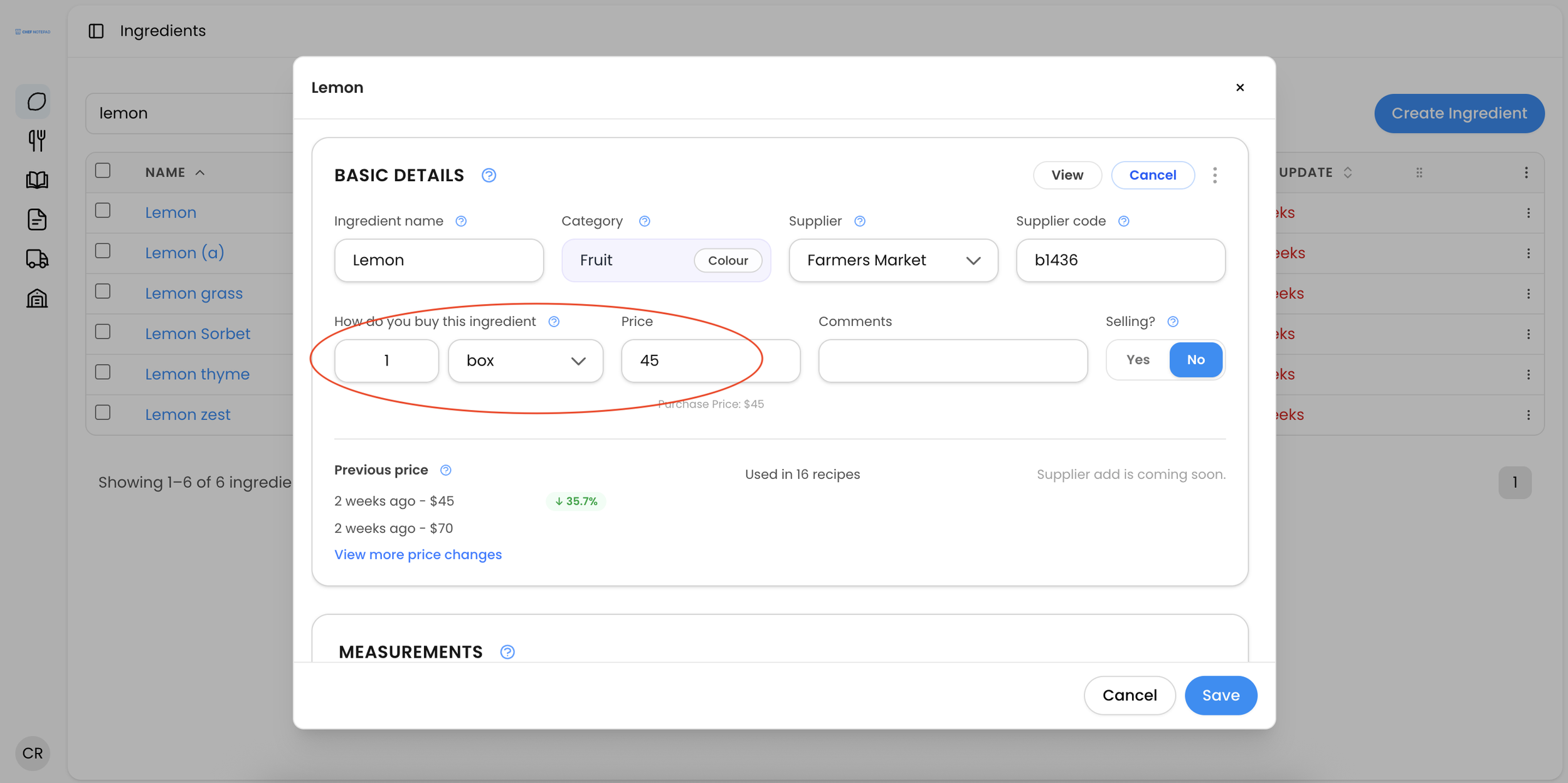
• Add the product code to your ingredient. This is how Chef Notepad knows which price belongs to which ingredient. Keep in mind that the same ingredient can have different product codes depending on the supplier or pack size, so we recommend using the format you purchase most often.
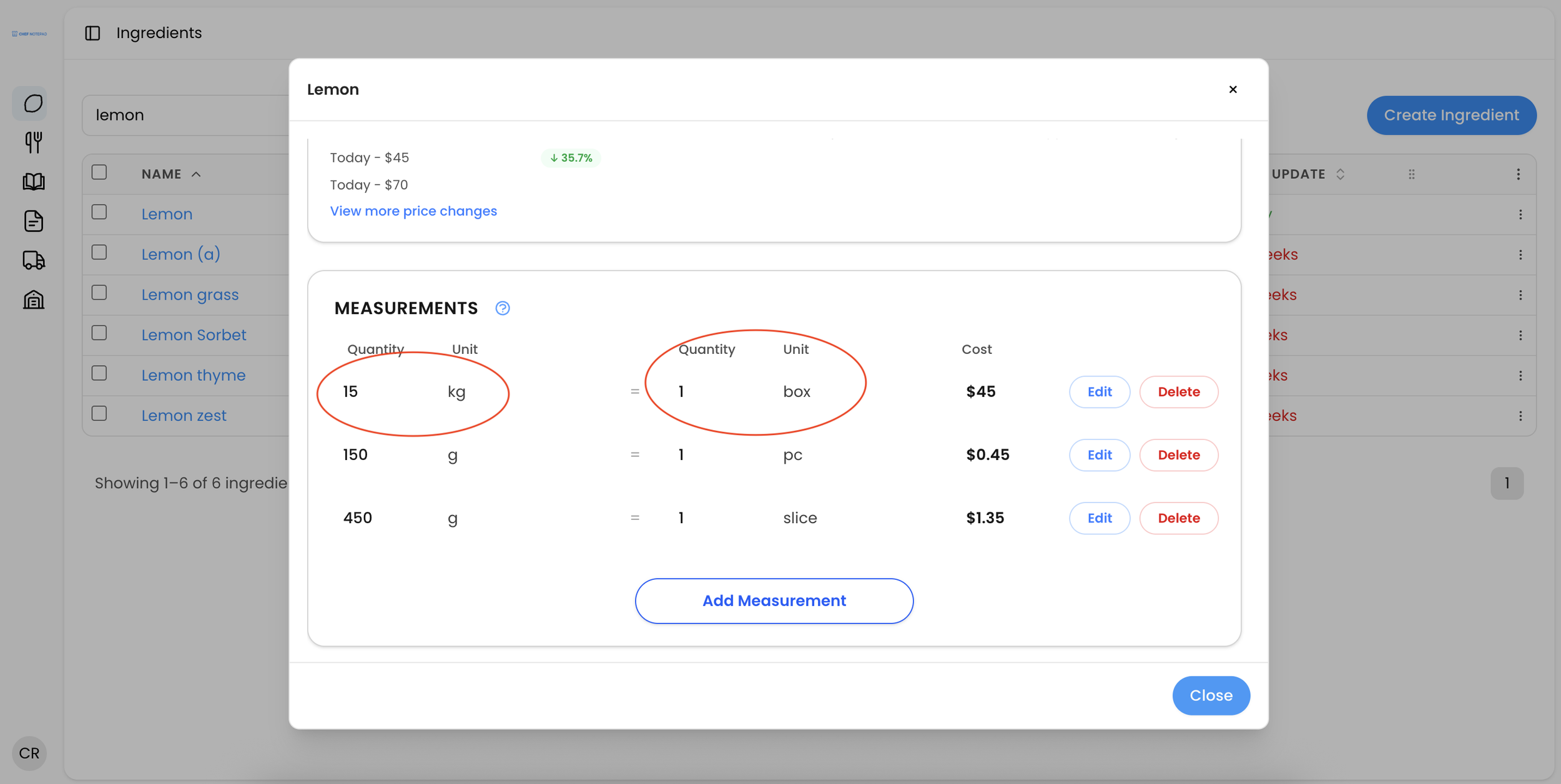
• Enter the price for the unit you buy in. The price in Chef Notepad should match your invoice. For example, if you buy lemons by the box at $45 a box, enter $45 per box, not $12 per kilo. You can add a measurement afterwards to break the box down into kilograms.
Step-by-step
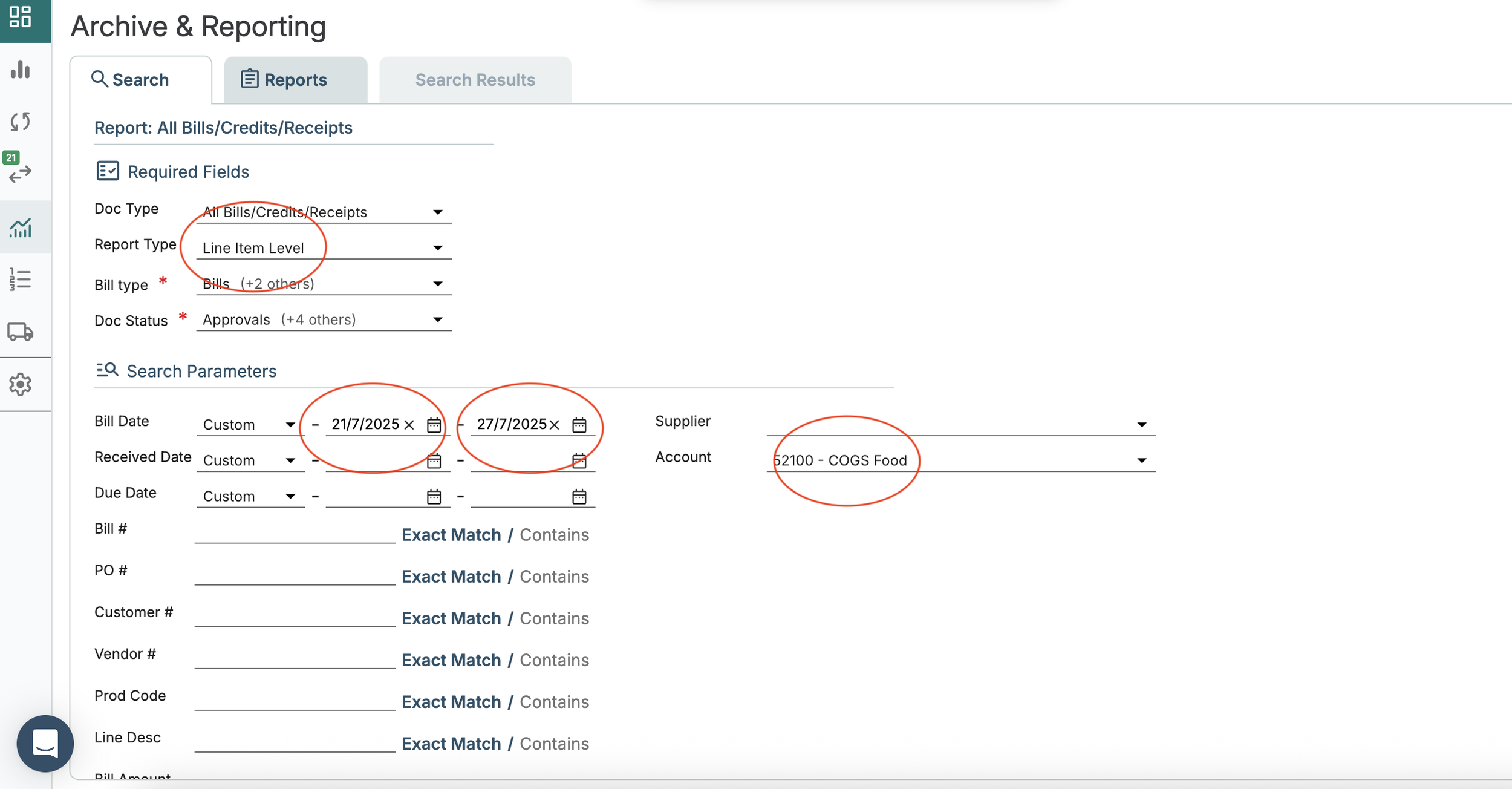
1. Go to Archive & Reporting in your Lightyear dashboard.
2. Under Report Type, select Line Item Level.
3. Choose a bill date range. We recommend selecting just the most recent week, as this avoids inconsistent pricing for the same item and speeds up the export.
4. Choose your supplier(s) or accounts (for example Food, Bar COGS).
5. Click Search, then Export Report.
6. Download the CSV file to your computer. There is no need to open or edit it.
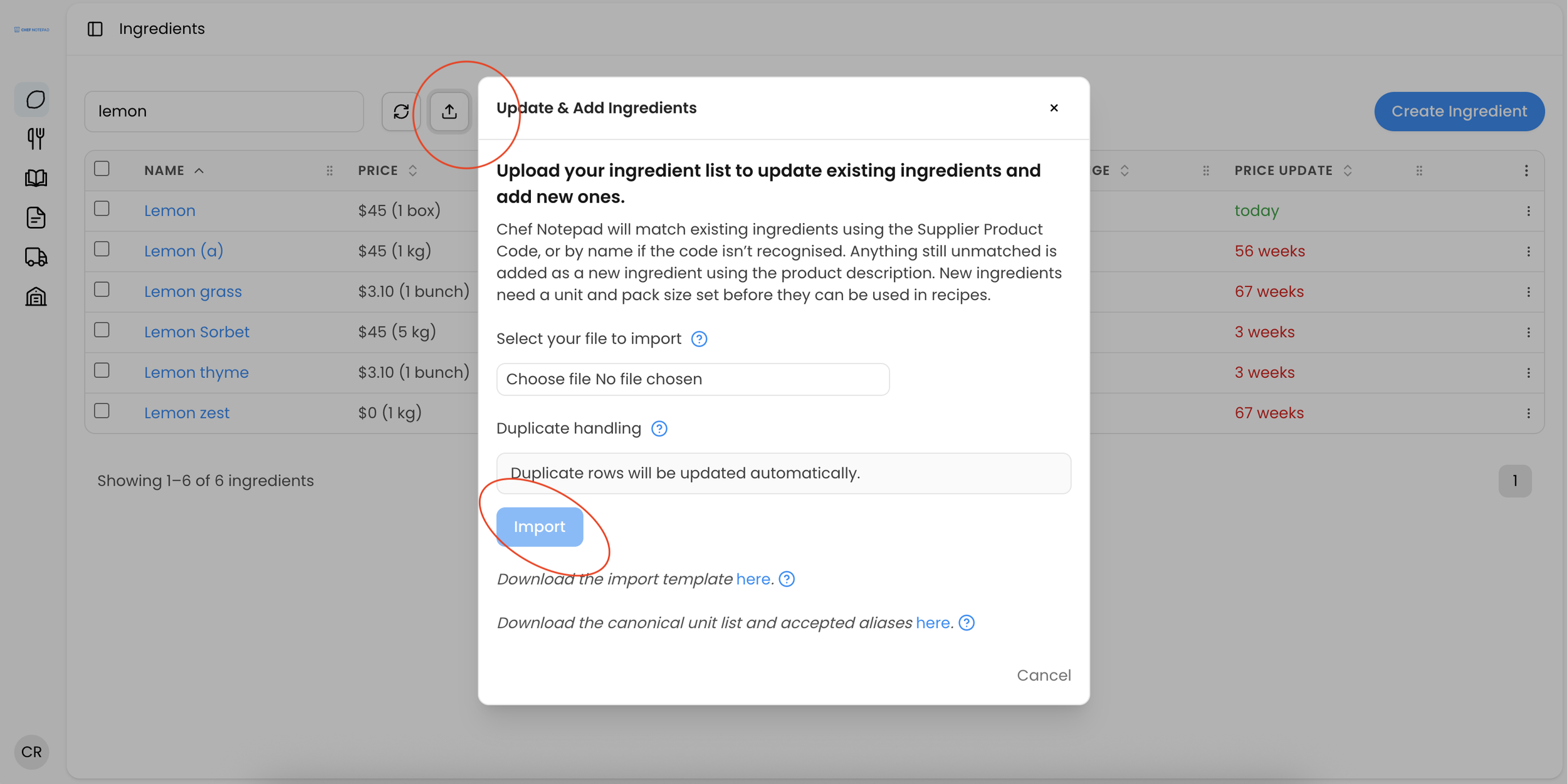
7. In Chef Notepad, go to Ingredients, then click Update Prices if you only want to update prices, or Import CSV if you also want new ingredients created.
8. Drag or upload your CSV and click Import.
Your prices will now be updated. Use the Price Change or Price Last Updated column to sort and review what has changed.
When you use Import CSV
Each line of your file is matched in this order:
• Product code first. If Chef Notepad recognises the product code, it updates the price.
• Then the description. If it does not recognise the product code but recognises the description, it updates the price.
• Otherwise, a new ingredient. If it recognises neither, it creates a new ingredient.
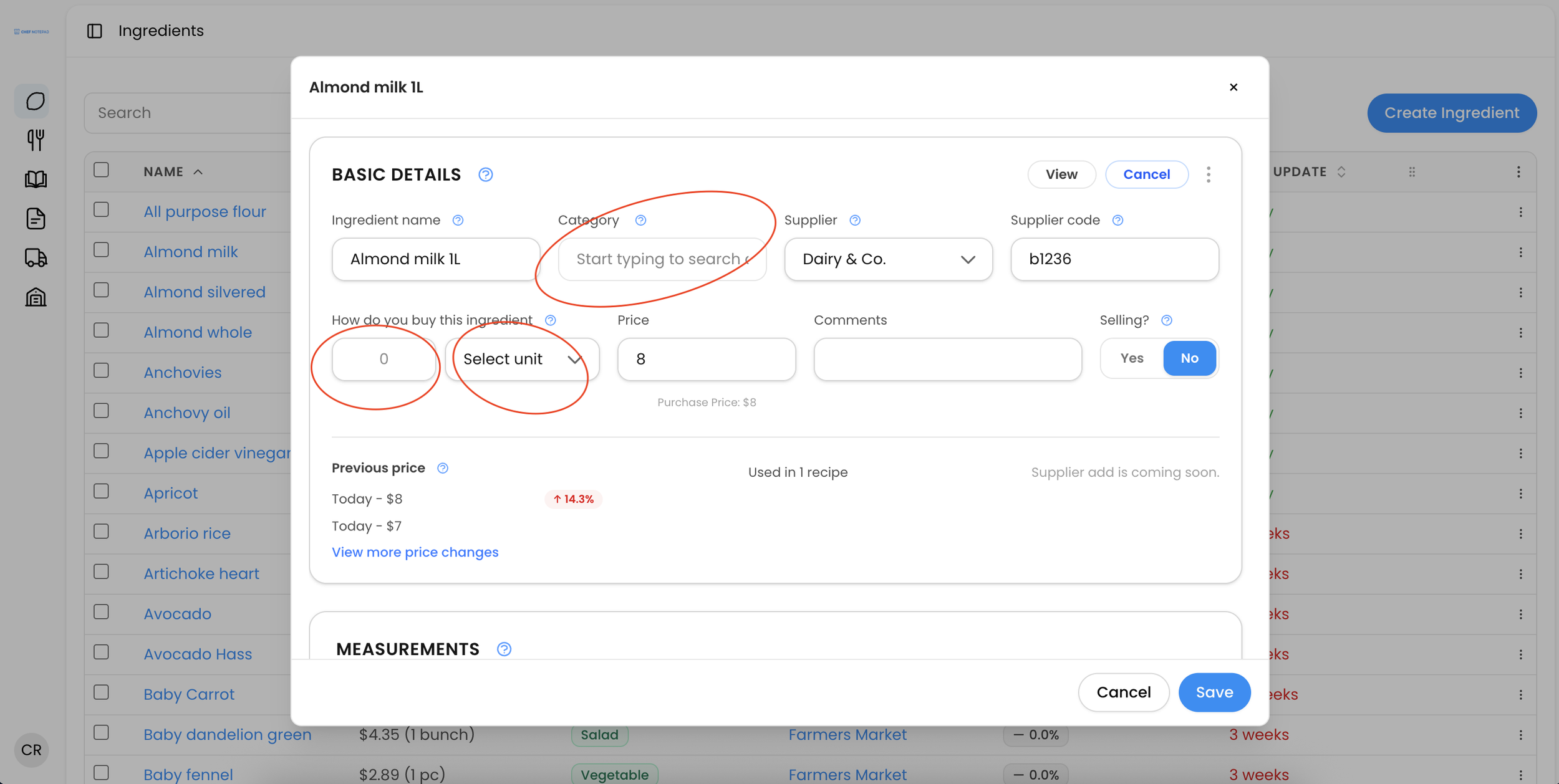
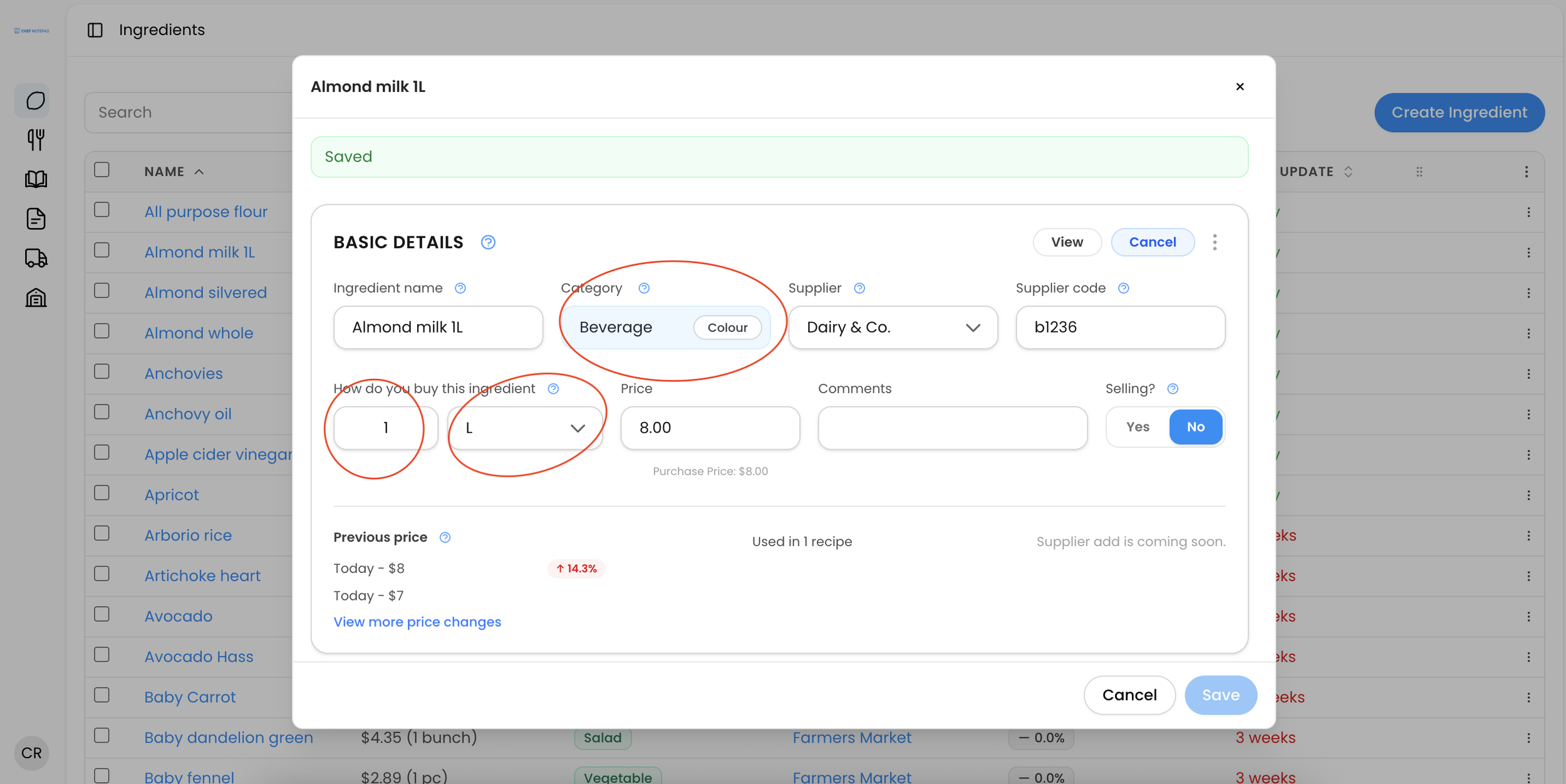
A new ingredient created this way comes in with a price only, with no category and no measurement, because those are not on a Lightyear export. Open each new ingredient afterwards to add them.
Common things you might see
Some lines in your file may not match anything in Chef Notepad. This often happens with items you do not use in your recipes, like foil, cleaning products or bar items.
• With Update Prices: those lines are simply skipped. No stress, it will not affect your costing if your recipes are entered correctly.
• With Import CSV: those lines become new ingredients. If you would rather not have them in Chef Notepad, use Update Prices instead, or delete them afterwards. If an ingredient has no product code in Chef Notepad, the match depends on the name alone. An ingredient called Lemon in Chef Notepad will not match Lemon 15kg Organic Box on Lightyear, so Import CSV would create a second lemon. Adding the product code avoids this.
Keeping your suppliers tidy
Importing can create a new supplier if the name is written differently. For example, Supplier A in Chef Notepad and Supplier A Pty Ltd in Lightyear are treated as two different suppliers. To merge them:
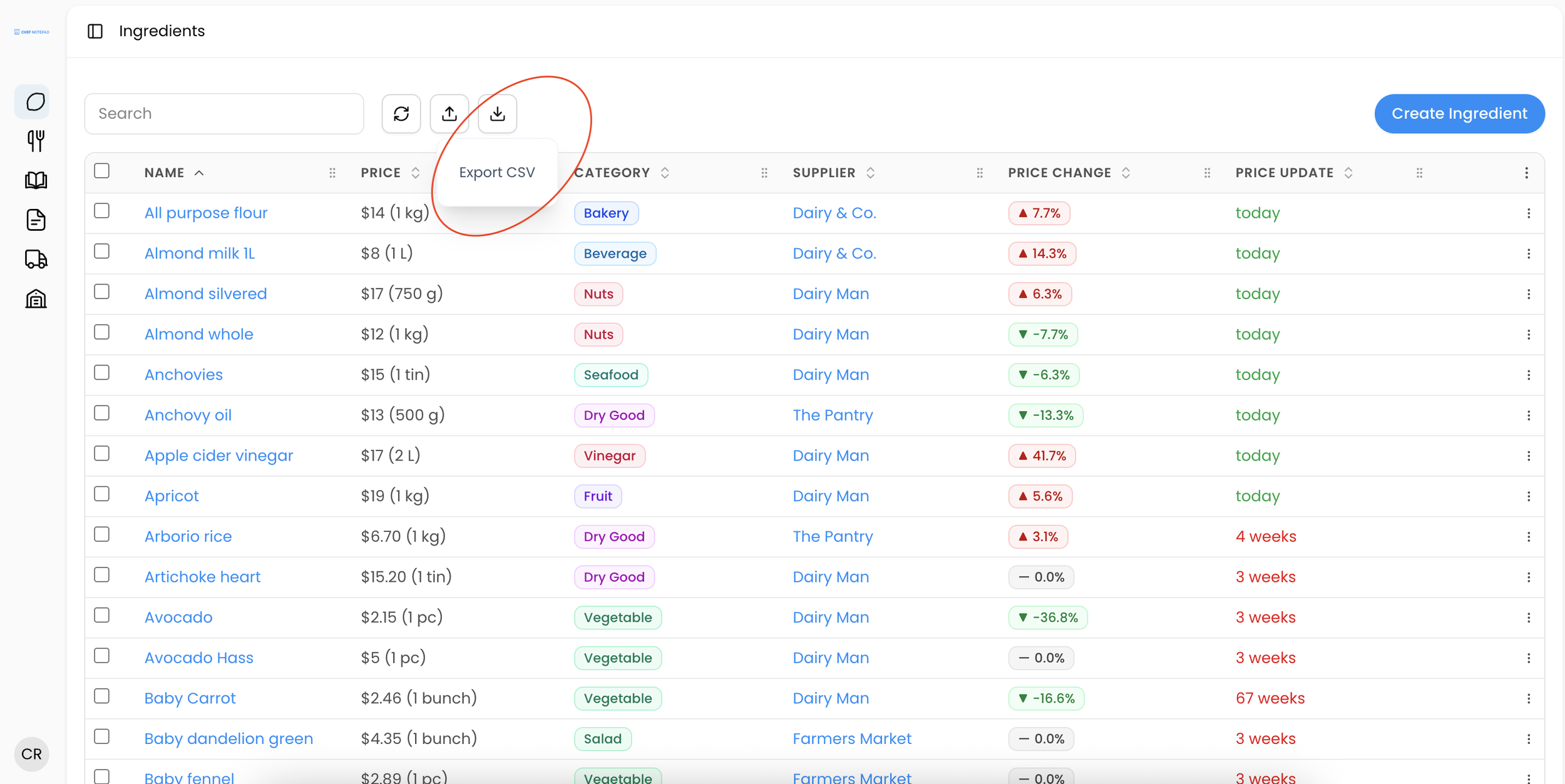
1. In Ingredients, click Export CSV to download your whole ingredient list.
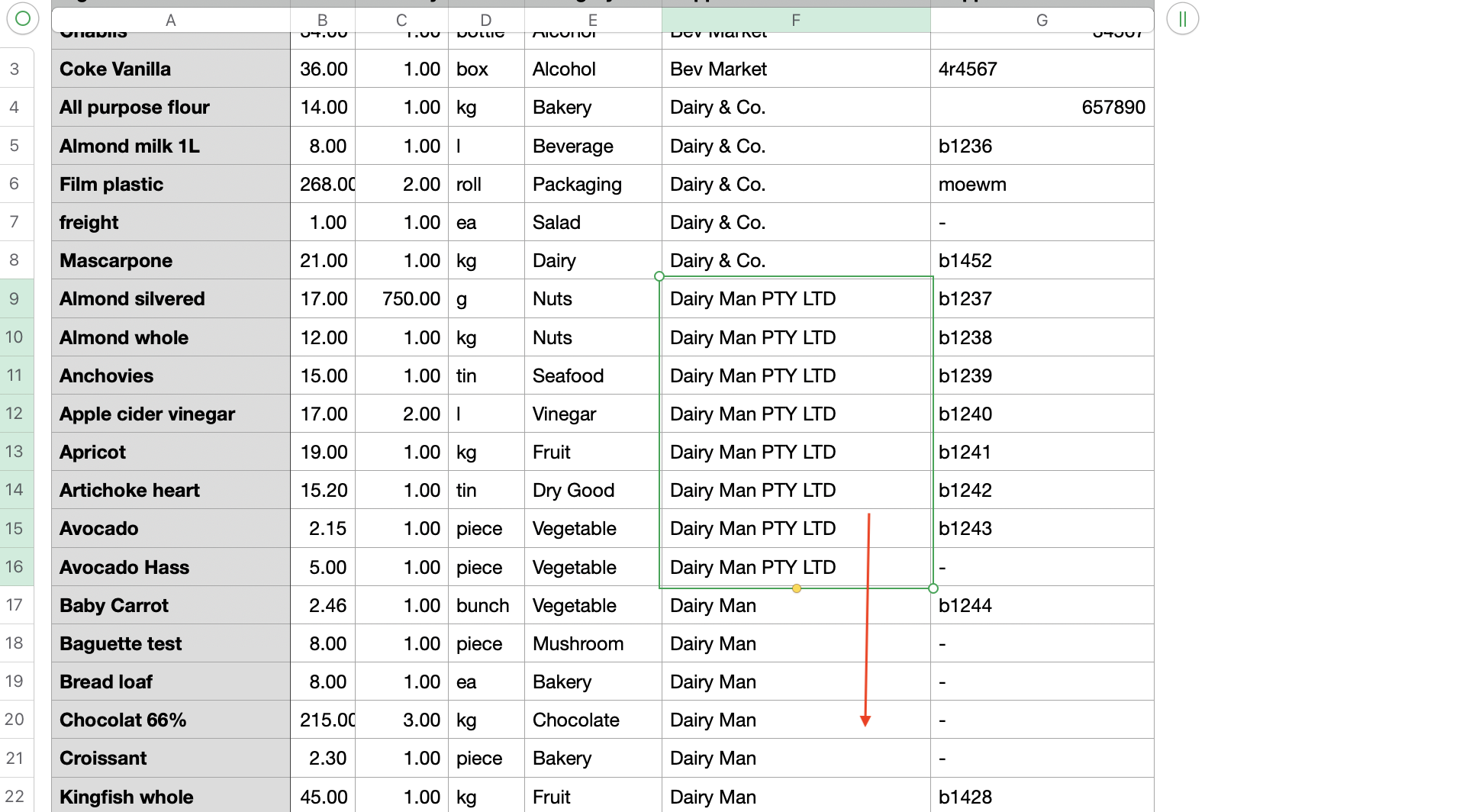
2. Sort the spreadsheet by supplier.
3. Replace the old supplier name with the one you want to keep. We recommend the Lightyear spelling, so future imports match automatically.
4. Save the file as a CSV and click Import CSV to bring it back in.
5. The old supplier now has no ingredients, so you can delete it from your suppliers.
Questions? Get in touch