Step by Step Tutorial
How to Integrate Lightyear with Chef Notepad
Chef Notepad integrates with Lightyear to keep your ingredient prices up to date — making recipe costing and food cost tracking effortless.
How the Integration Works
Lightyear doesn’t create ingredients in Chef Notepad, but it updates the price of any ingredient that already exists in your account.
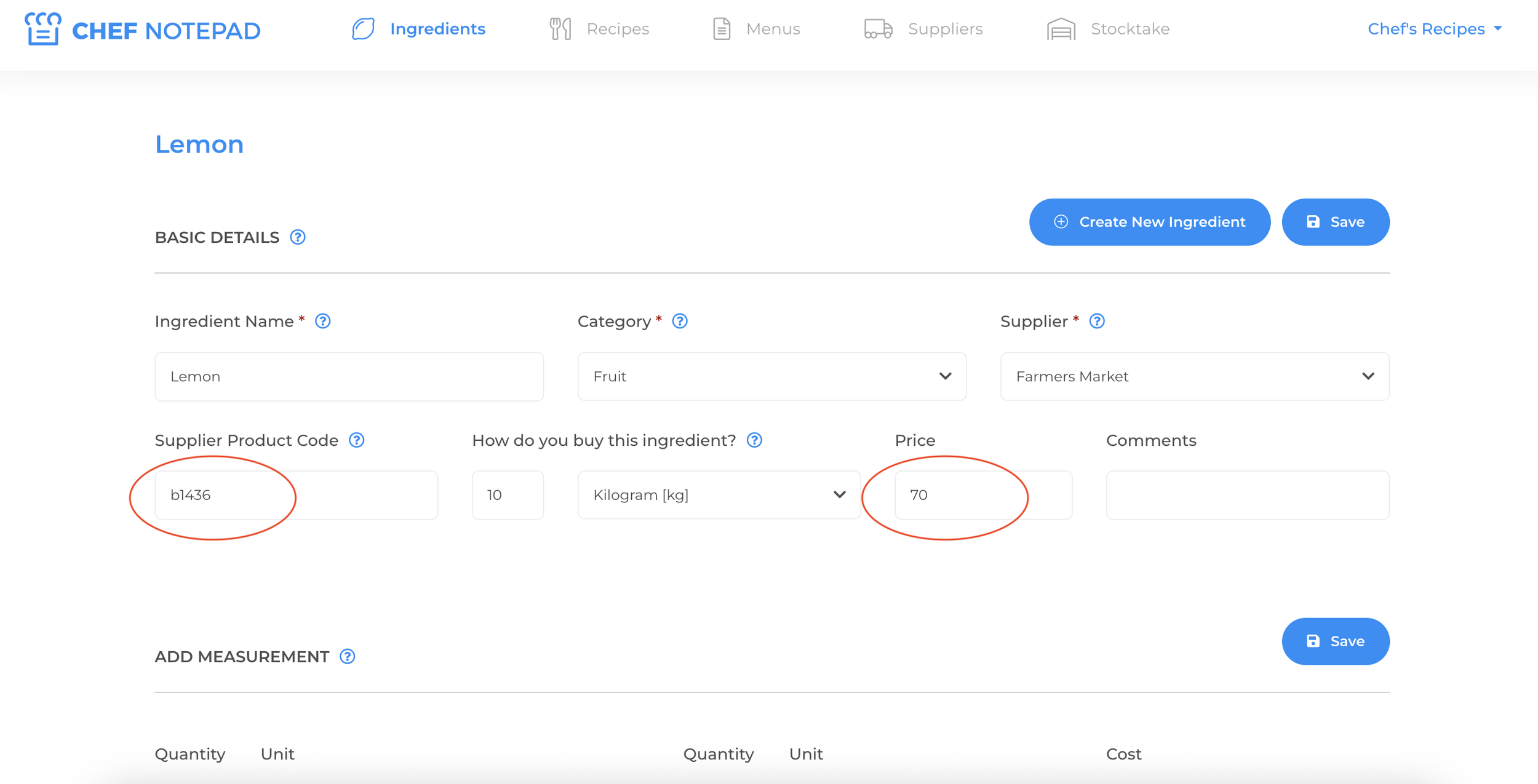
Chef Notepad identifies ingredients by two key details:
• Product code (found on your Lightyear invoice)
• Price per unit (e.g. per kg, box, litre)
It’s important that these details are entered correctly when you first create an ingredient in Chef Notepad.
Keep in mind that the same ingredient can have different product codes depending on the supplier or pack size — we recommend using the format you purchase most often.
Integration via Report (more accurate, more manual)
This method lets you choose which invoices to use and gives you more control. It requires a few edits to the exported file, but nothing too technical.
Step-by-step:
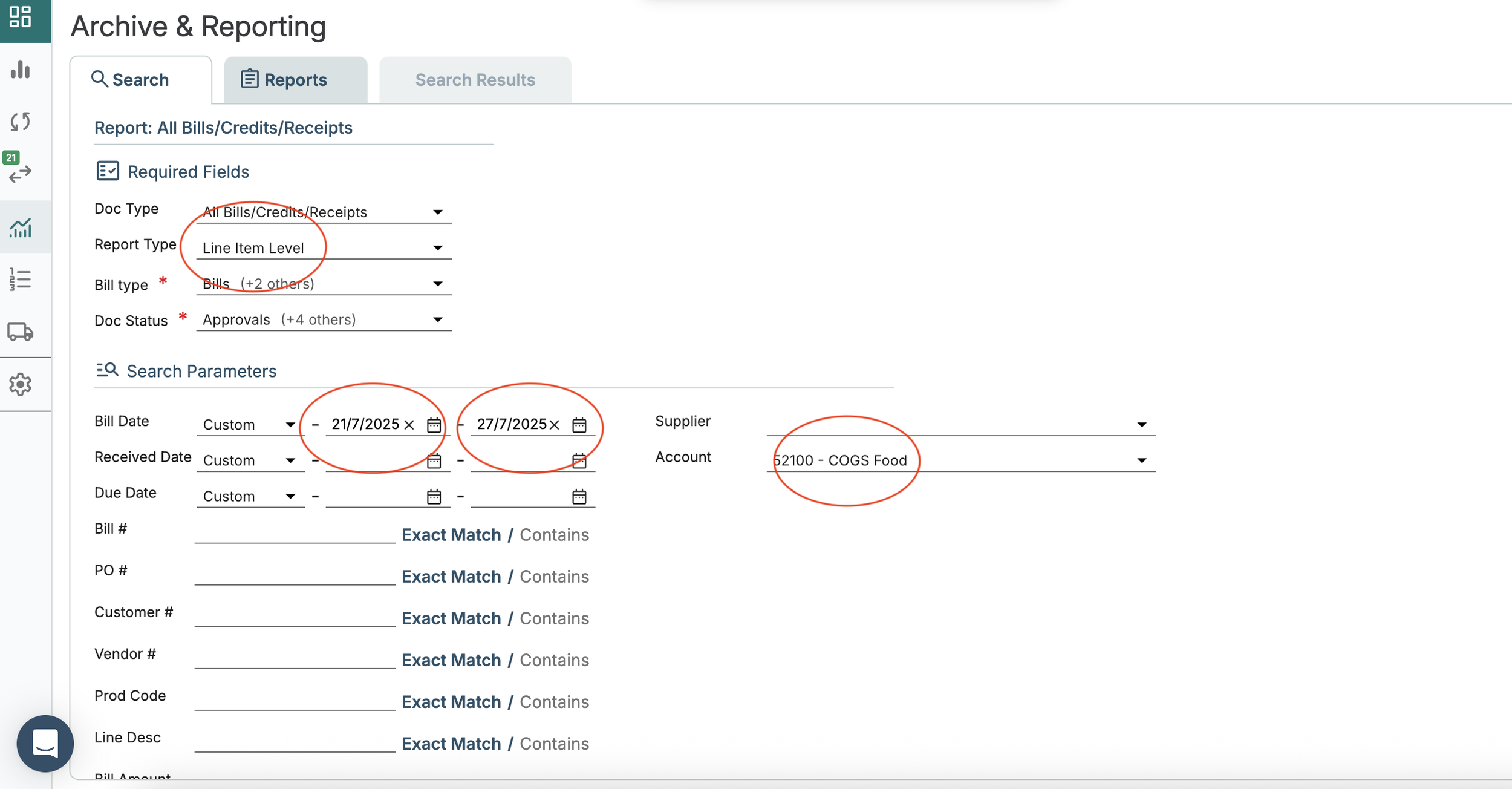
Go to Archive & Reporting in your Lightyear dashboard
Under Report Type, select Line Item Level (See picture bellow)
Choose a bill date range (we recommend selecting just the most recent week — this avoids inconsistent pricing for the same item and speeds up export)
Choose your supplier(s) or accounts (e.g. Food, Bar COGS)
Click Search then Export Report
Download the CSV file to your computer
Open the file and delete all columns except for Item Number - Item Unit Price Inc Tax
Save the file as a CSV
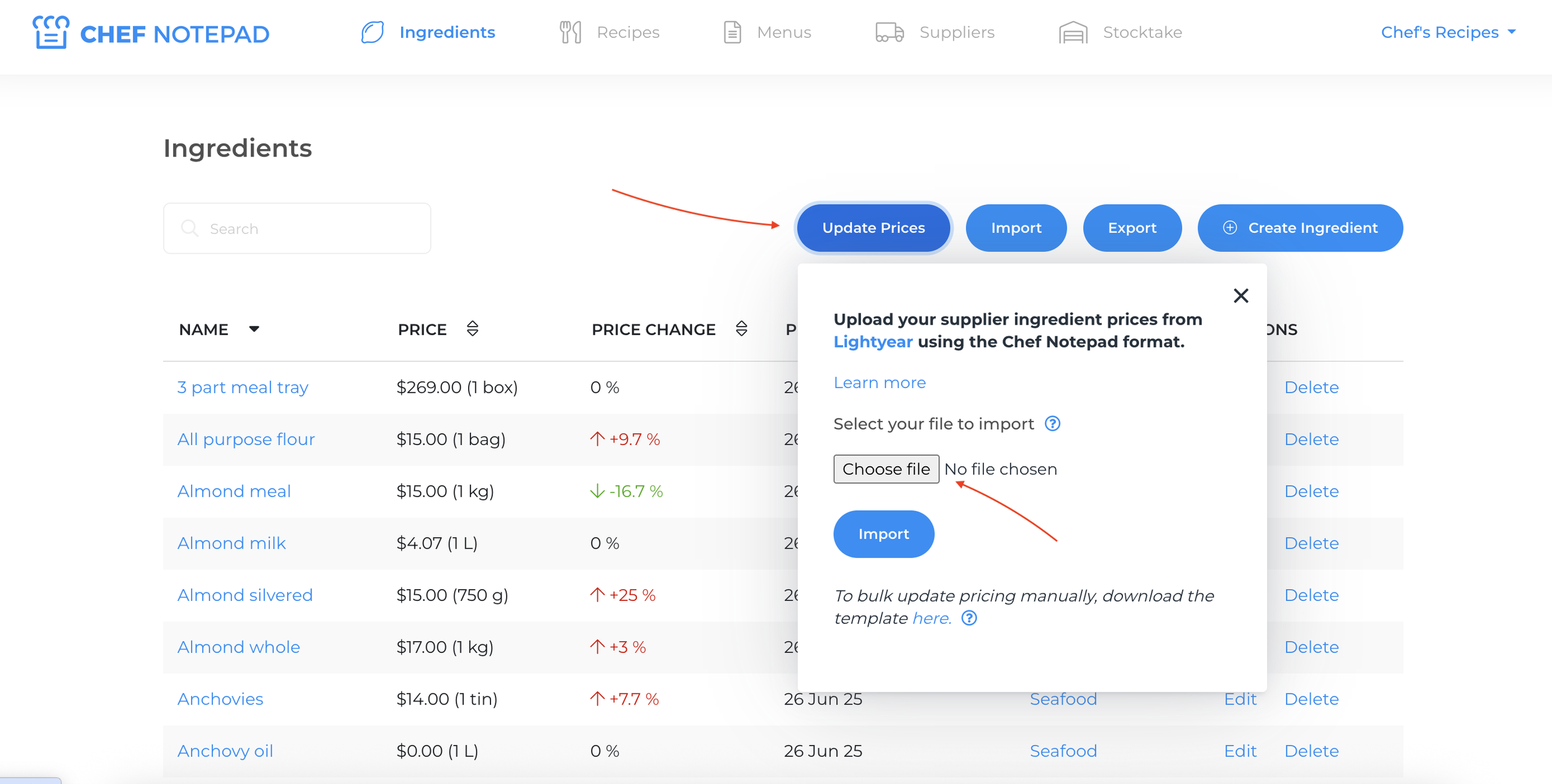
In Chef Notepad, go to Ingredients > Update the Prices
Drag or upload your CSV and click Import
Your prices will now be updated. Use the “Price Change” or “Price Last Updated” column to sort and review changes.
Common Import Errors:
You might see some missing product codes — this often happens with items not currently used in your recipes (like foil, cleaning products, or bar items).
No stress — these won’t affect your actual costing if your recipes are entered correctly.