
Ingredients
Everything you need to know about creating and managing ingredients in Chef Notepad
Ingredients are the foundation of everything in Chef Notepad. Once your ingredients are in, with their prices, measurements and wastage, your recipes, menus and food costs calculate themselves. This section walks you through each part, from adding your first ingredient to keeping your prices up to date.
Creating an ingredient
2 min read
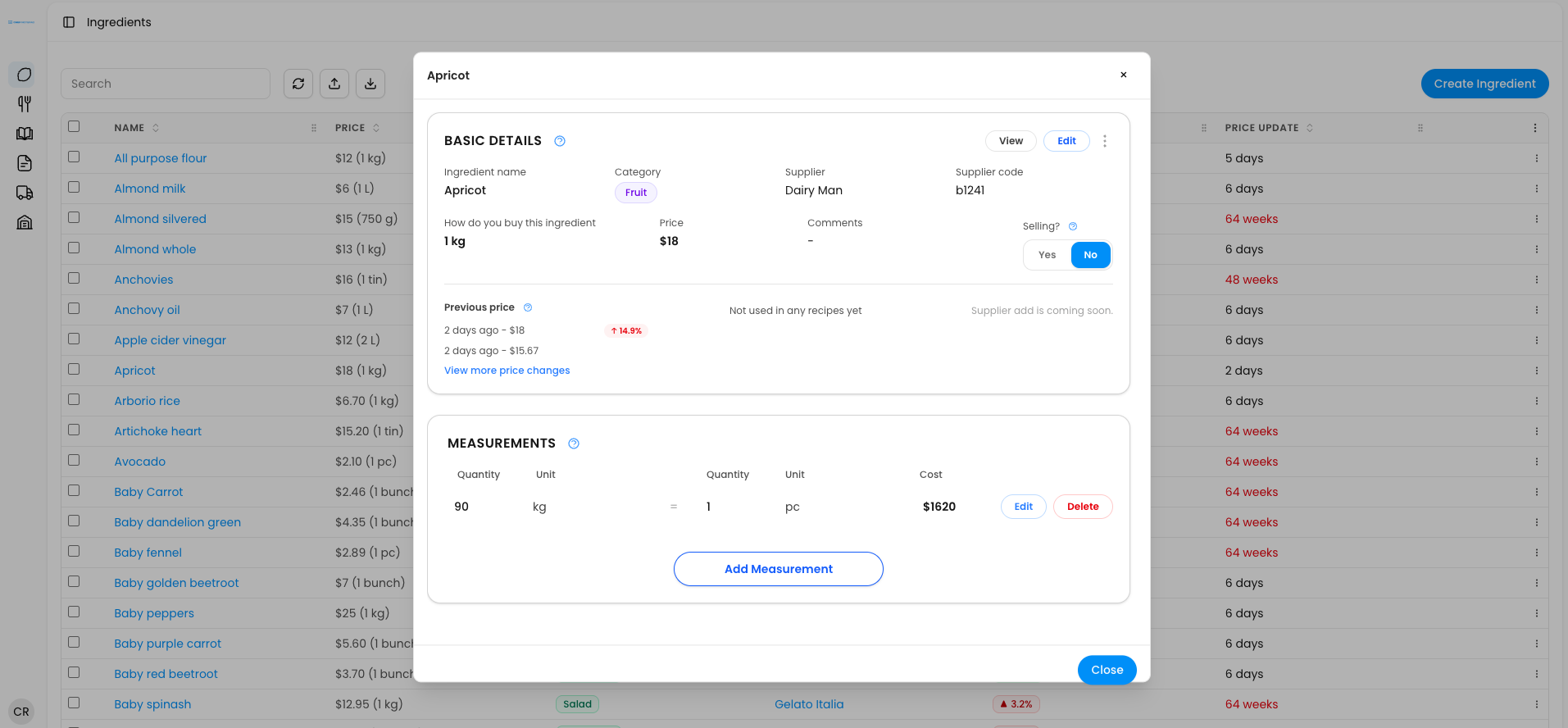
Adding an ingredient is the first step to building recipes smoothly, because every recipe is made from your ingredients and their prices. Here is how to enter one into Chef Notepad.
1. Open the Ingredients section. From the menu on the left-hand side, click Ingredients.
2. Click Create Ingredient. A blank ingredient form opens.
3. Enter the name, category and supplier. Type the ingredient name, then choose a category and a supplier. If the category or supplier you need does not exist yet, simply type its name and press Enter to create it on the spot. You can also change the colour of a category by clicking next to it, which makes your lists easier to scan.
4. Add a supplier code (optional). If you use an integration that updates your ingredient prices automatically, enter the supplier code here so Chef Notepad can match the right prices to the right ingredient.
5. Tell us how you buy it. Enter how you purchase the ingredient (for example, 1 box), the purchase price, and any notes you would like to keep with it.
6. Turn on Selling if you sell it directly. If you sell this item as it is, such as a beverage, a pastry or a loaf of bread, switch on the Selling option. The next article explains how this works.
7. Save it. Click Create to save your ingredient.
That is it. Your ingredient is now ready to use whenever you create a recipe.
Next: Learn how to sell an ingredient, add a measurement, add wastage, navigate the ingredient page, Importing, exporting and updating prices and edit an existing ingredient.
Questions? Get in touch
Selling an ingredient
2 min read
Some ingredients never go into a recipe. You buy them and sell them exactly as they are: a muffin, a croissant, a can of coke, a beer, a bottle of wine. When you mark these as sellable, you can set a selling price and track their margin the same way you would for a recipe, so even your resale items show whether they are making you money.
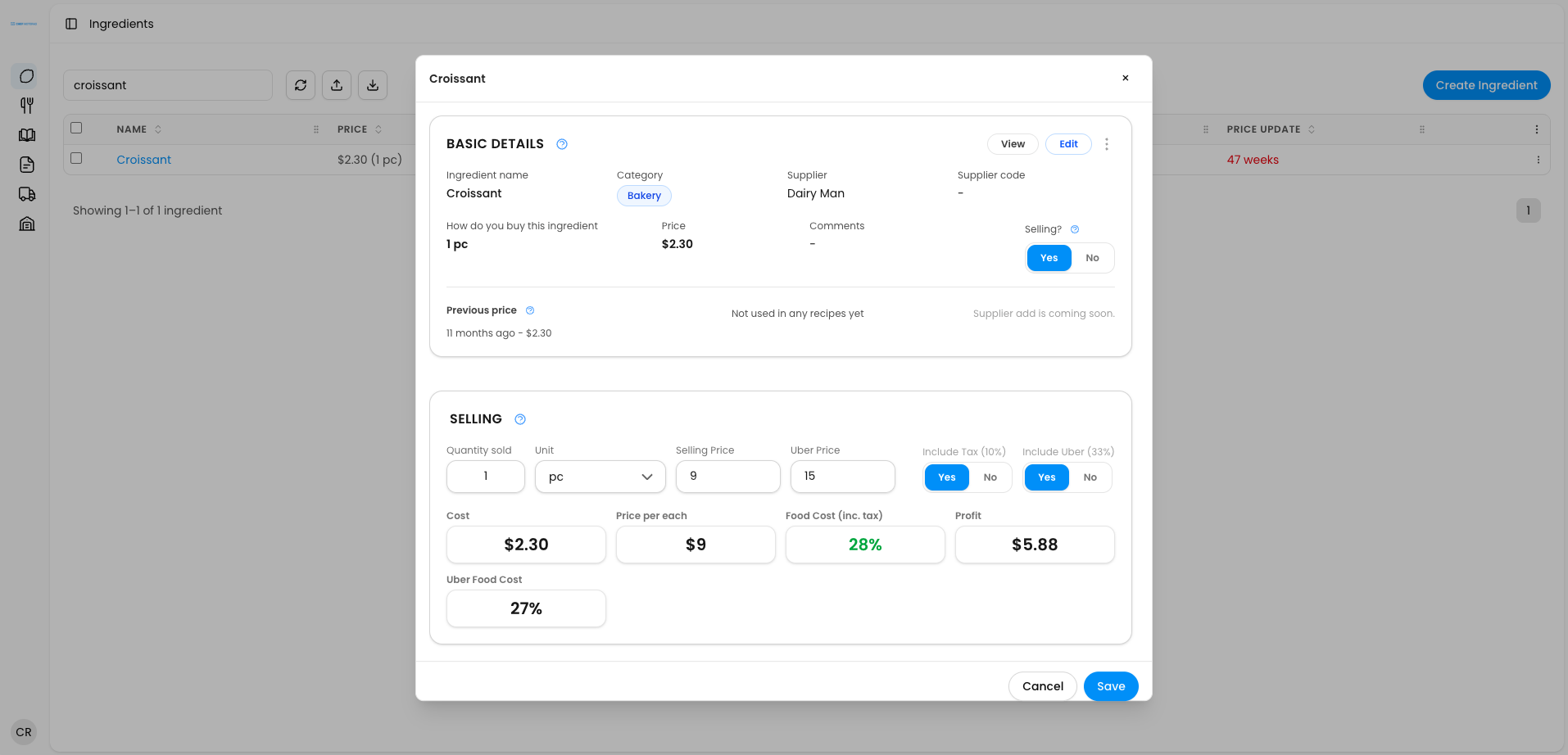
1. Open the ingredient. Find the ingredient in your list and open it, then toggle Selling to Yes.
2. Enter your selling price. Type in the price you charge your customers.
3. Add tax and charges if they apply. Apply any tax, plus delivery or platform charges, such as Uber Eats, so your margin reflects what you really keep.
4. Save. Click Save to confirm your changes.
You will now see the food cost percentage and profit for this item, exactly as you would for a recipe.
Next: Learn how to add a measurement, add wastage, navigate the ingredient page , Importing, exporting and updating prices and edit an existing ingredient.
Questions? Get in touch
Adding a measurement
2 min read
By default, an ingredient can only be used in the unit you bought it in, like a box. Adding a measurement lets Chef Notepad convert that into other units, such as kilograms or pieces, so you can use the ingredient in whichever unit a recipe calls for. Without it, a recipe that needs 200 grams of an ingredient you buy by the box has no way of working out the cost.
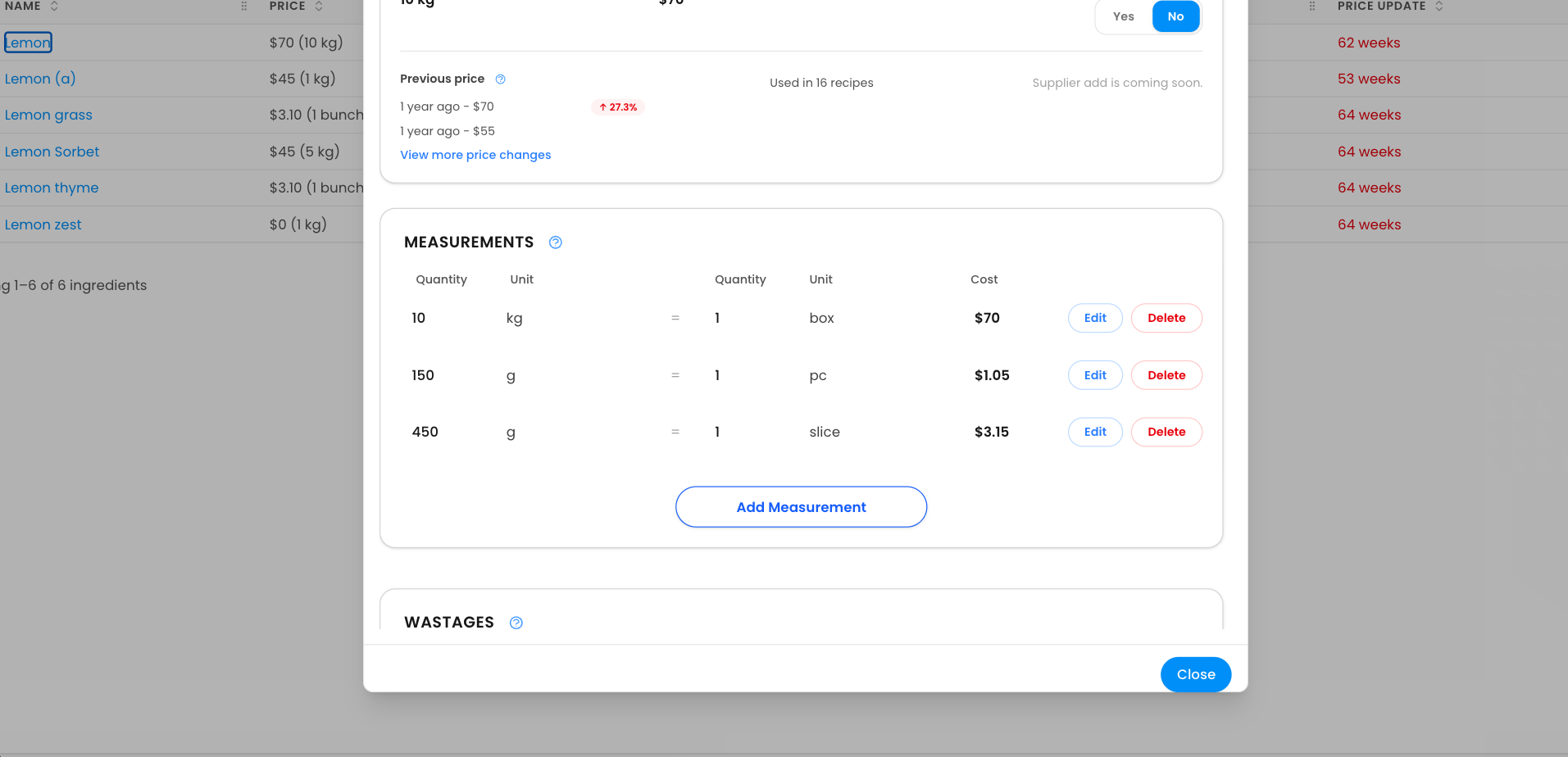
1. Open the ingredient. Open the ingredient you want to add a measurement to.
2. Click Add Measurement.
3. Enter the conversion. Tell Chef Notepad how your units relate to each other. For example, 1 box = 15 kg, or 1 piece = 130 g.
4. Save. Click Save.
Your ingredient can now be used in a recipe with any of the measurements you have added.
Next: Learn how to add wastage, navigate the ingredient page, Importing, exporting and updating prices and edit an existing ingredient.
Questions? Get in touch
Adding a wastage
2 min read
Most ingredients lose some weight or volume before they are ready to use, whether that is peeling an onion, trimming a fish, or draining the brine from a jar of olives. Recording that wastage keeps your recipe costs accurate, because you are paying for the whole ingredient, not only the part that ends up on the plate.
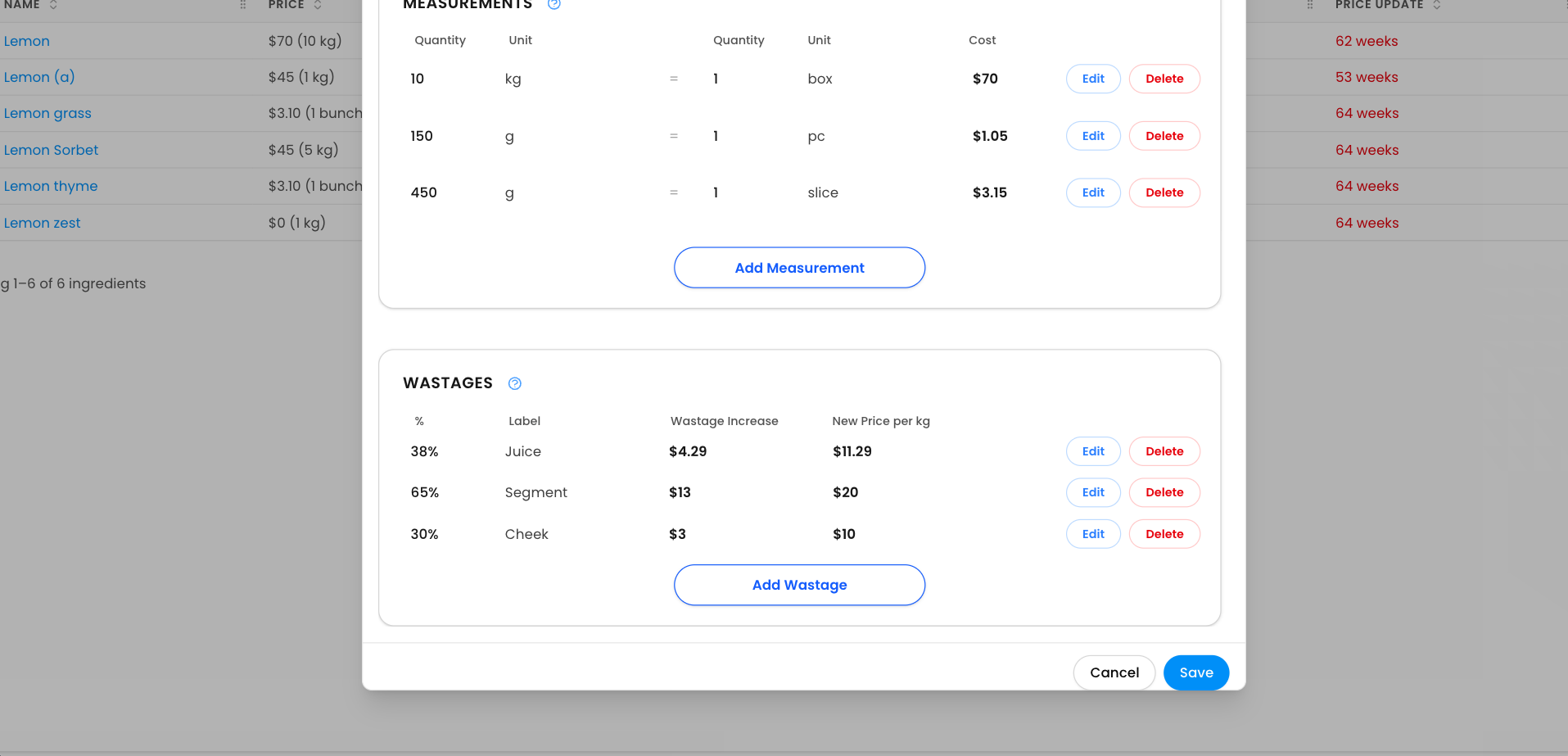
1. Open the ingredient. Open the ingredient and click Add Wastage.
2. Use the built-in calculator. The calculator works out the wastage percentage for you. Simply weigh the ingredient before and after preparing it and enter both numbers.
3. Try an example. Juicing 800 g of lemon might only give you 350 ml of juice, which is a wastage of 450 g.
4. Save the value. Click Use this Value to save it.
From now on, your ingredient’s cost automatically factors in that wastage, and every recipe using it is costed more accurately.
Next: Learn how to navigate the ingredient page, Importing, exporting and updating prices and edit an existing ingredient.
Questions? Get in touch
Navigating the ingredient page
2 min read
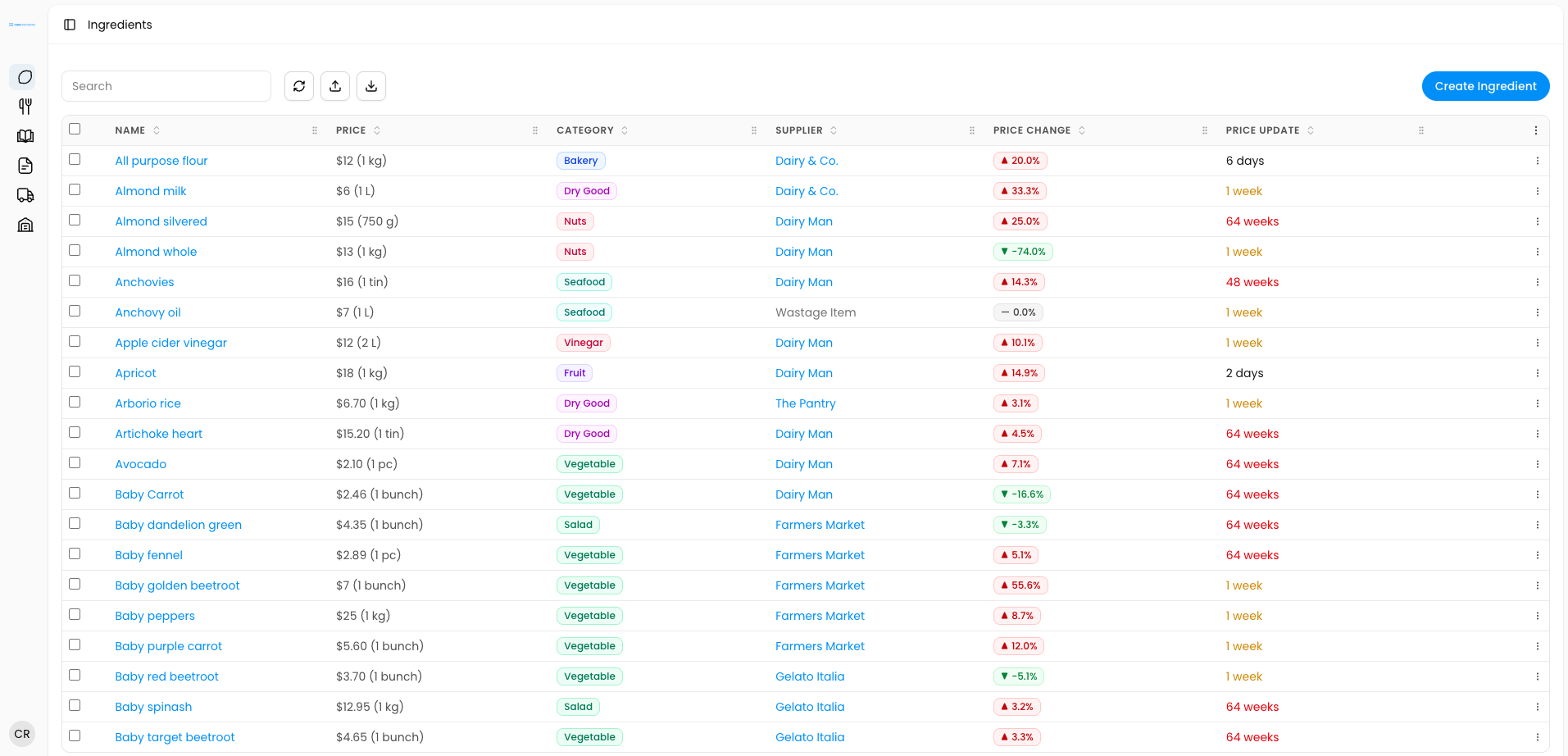
The ingredient page gives you a full overview of every ingredient at a glance, and you can customise the layout to suit the way you like to work.
Customising the view
• Sort: click any column header to sort from lowest to highest, highest to lowest, or alphabetically.
• Resize: drag a column’s edge to make it narrower or wider.
• Reorder: drag a column header to move it to where you want it.
• Show or hide columns: choose which columns are visible from the column settings.
Viewing and filtering
• See the details: click an ingredient to view or edit its full details.
• Filter quickly: click a category or supplier name to filter the list down to just that
Next: Learn how to Importing, exporting and updating prices and edit an existing ingredient.
Questions? Get in touch
Edit an existing ingredient
4 min read
Prices change, suppliers change and recipes evolve, so your ingredients will need updating from time to time. You can edit an ingredient’s details, update its price, review its price history, and remove it if you no longer need it.
Editing the details
1. Open the ingredient. Click directly on the ingredient.
2. Edit and save. Click Edit, make your changes, then click Save.
Updating the price
1. Click on the price. Click directly on the ingredient’s price.
2. Enter the new price. Type in the new price and confirm it.
The last-updated date and the price fluctuation update automatically. Recently updated prices show in green, and older ones fade to black, then orange, then red. It is a handy flag for prices that may need checking.
Viewing your price history
• See every change: open the ingredient to see all of its previous price changes.
• Undo a change: click the three dots next to an ingredient to undo a price change.
How price changes affect your menus
When you update an ingredient’s price, the change flows straight through to every recipe and menu that uses it. For example, updating the price of your snapper automatically updates your Snapper Carpaccio and shows you the fluctuation on it, so you can see the impact on your food cost straight away.
Removing an ingredient
Ingredients are never deleted outright. Removing one is a soft delete, which means you can bring it back at any time.
If you remove an ingredient that is used in any recipes, those recipes will flag it as This ingredient has been deleted, so nothing is costed incorrectly without you noticing. You then have two choices:
• Replace it: choose a different ingredient in its place.
• Restore the original: go to Settings, then Deleted Items, find the ingredient and click Revoke. It comes straight back into your system.
This means an accidental deletion is never a big deal. Say you remove your lemon by mistake and it is used in 25 different recipes. You do not need to create a new ingredient called lemon and replace it in every recipe. Revoke the original once, and every recipe is fixed.
Next: Learn how to Importing, exporting and updating prices
Questions? Get in touch
Importing, exporting and updating prices
6 min read
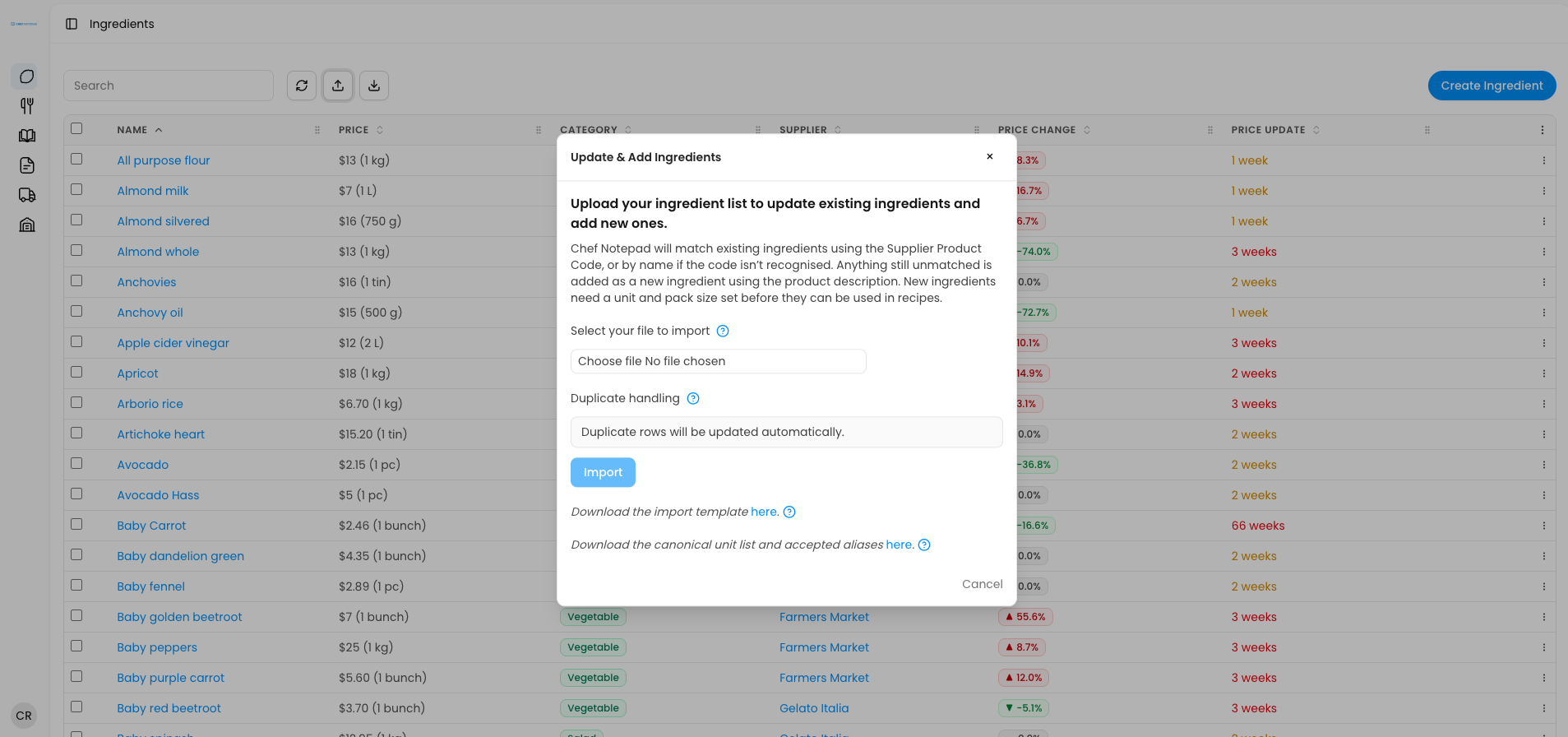
Keeping your ingredient list and prices up to date does not have to mean updating everything by hand. You can export your whole ingredient list to a spreadsheet, bring it back in with your changes, or update prices straight from your invoices using our invoicing integration partner, Lightyear.
Exporting your ingredients
1. Open the Ingredients section. From the menu on the left-hand side, click Ingredients.
2. Click Export CSV. Your whole ingredient list downloads as a spreadsheet, with the ingredient name, price, quantity, unit, category, supplier and supplier product code.
Importing ingredients from a spreadsheet
1. Open the import option. In the Ingredients section, click Import CSV.
2. Download the import template (if you need it). Click Download the import template to get a spreadsheet with the right columns already in place: ingredient name, price, quantity, unit, category, supplier and product code. The columns can be in any order, as long as the headings in the top row are written exactly the same way.
3. Save your file as a CSV. Fill in or edit your spreadsheet, then save it as a CSV file.
4. Import it. Choose your file and import it back into Chef Notepad.
When you import, Chef Notepad matches each line to your existing ingredients in this order:
• Product code first. If it recognises the product code, it updates that ingredient’s information.
• Then the ingredient name. If it does not recognise the product code but does recognise the ingredient name, it updates that ingredient and adds the product code to it.
• Otherwise, a new ingredient. If it recognises neither, it creates a new ingredient.
Keep in mind that changing an ingredient’s name can create a duplicate. If you rename Lemon to Lemon 2 or Lemon Organic and the product code is different, Chef Notepad will treat it as a brand new ingredient instead of updating the one you already have.
Updating prices from your Lightyear invoices
First, export your file from Lightyear. Log in, click Archive and Reporting on the left-hand side, and under Search set Report Type to Line item level. Choose your dates, then pick a supplier (or several), or choose by account, such as your food COGS account. Click Searchto see the list of invoices, then click Export All to download the CSV. You do not need to edit this file.
If you use Lightyear, you can update your prices directly from the file you export from there, without doing a full import. It only changes prices, which makes it quick and safe to run regularly.
1. Open Update Prices. In the Ingredients section, click Update Prices.
2. Upload your Lightyear file. Choose the CSV file you exported from the Lightyear archives. You do not need to edit it first.
This only reads two columns from your Lightyear file, the product code and the unit price(excluding tax). When it recognises a product code, it updates the price of that ingredient. When it does not recognise a product code, it does nothing, and it never creates new ingredients. To get the best results, there are two things to set up first.
• Add a product code to every ingredient in Chef Notepad. Without one, Chef Notepad has no way of matching the price on your invoice to the right ingredient.
• Enter the price for the unit you buy in. The price must match what is on your invoice, for the unit you buy. For example, if you buy lemons by the box and a box costs $45, enter $45 per box in Chef Notepad, not $12 per kilo. You can then add a measurement to break the box down into kilograms. Chef Notepad does not read the units from your invoice, it simply puts the new price against that product code, so the unit in Chef Notepad needs to match the way you buy.
Importing a full Lightyear export to create new ingredients
If you also want new ingredients created from your Lightyear file, import the whole file instead of using Update Prices.
1. Open the import option. In the Ingredients section, click Import CSV.
2. Choose your Lightyear file. Chef Notepad recognises its own template and the Lightyear format.
3. Import it. Chef Notepad reads four columns from your Lightyear file: supplier name, product code, description (which becomes the ingredient name) and unit price(excluding tax).
It matches in the same order as a normal import: product code first, then the description, and a new ingredient is created only if neither matches. A new ingredient created this way comes in with a price only, with no category and no measurement, because those do not appear on a Lightyear export. Go back into the ingredient afterwards to add its category and measurement.
A note about suppliers
Importing a Lightyear file can create a new supplier if the supplier name is written differently from the one in Chef Notepad. For example, if your supplier is Supplier A in Chef Notepad and Supplier A Pty Ltd on Lightyear, Chef Notepad treats them as two different suppliers.
To merge the two into one:
1. Export your whole ingredient list. Click Export CSV in the Ingredients section.
2. Sort by supplier. In your spreadsheet, sort alphabetically by supplier.
3. Replace the old name with the one you want to keep. We recommend keeping the name as it appears on Lightyear, so future imports match automatically. Copy that name over the old supplier name.
4. Save as a CSV and import it back. Click Import CSV.
5. Delete the old supplier. It now has no ingredients assigned to it, so you can delete it from your suppliers.
Why product codes matter so much
Always add a product code to your ingredients wherever you can. Without one, Chef Notepad has to match by name, and small differences will cause problems. For example, if your ingredient is called Lemon in Chef Notepad but Lemon 15kg Organic Box on Lightyear, Chef Notepad will create a second lemon instead of updating the one you already have, and you will end up with two of the same ingredient.
Questions? Get in touch