
Menu
How to create and manage menus in Chef Notepad
Menus bring your recipes together into exactly what you sell, with your overall food cost, cost of goods, profit and revenue calculated for you automatically. Chef Notepad has two types of menu, and each one is explained in full below, so you can jump straight to the one you need.
• À la carte menu: for your regular menu, where guests order individual dishes.
• Set menu: for catering, weddings, group bookings, birthdays and other special events, where you price a whole event for a set number of people.
Creating an à la carte menu
3 min read
An à la carte menu is your everyday menu, with every dish priced individually. Building it in Chef Notepad shows you how each dish is performing, and how your whole menu is sitting on food cost and profit.
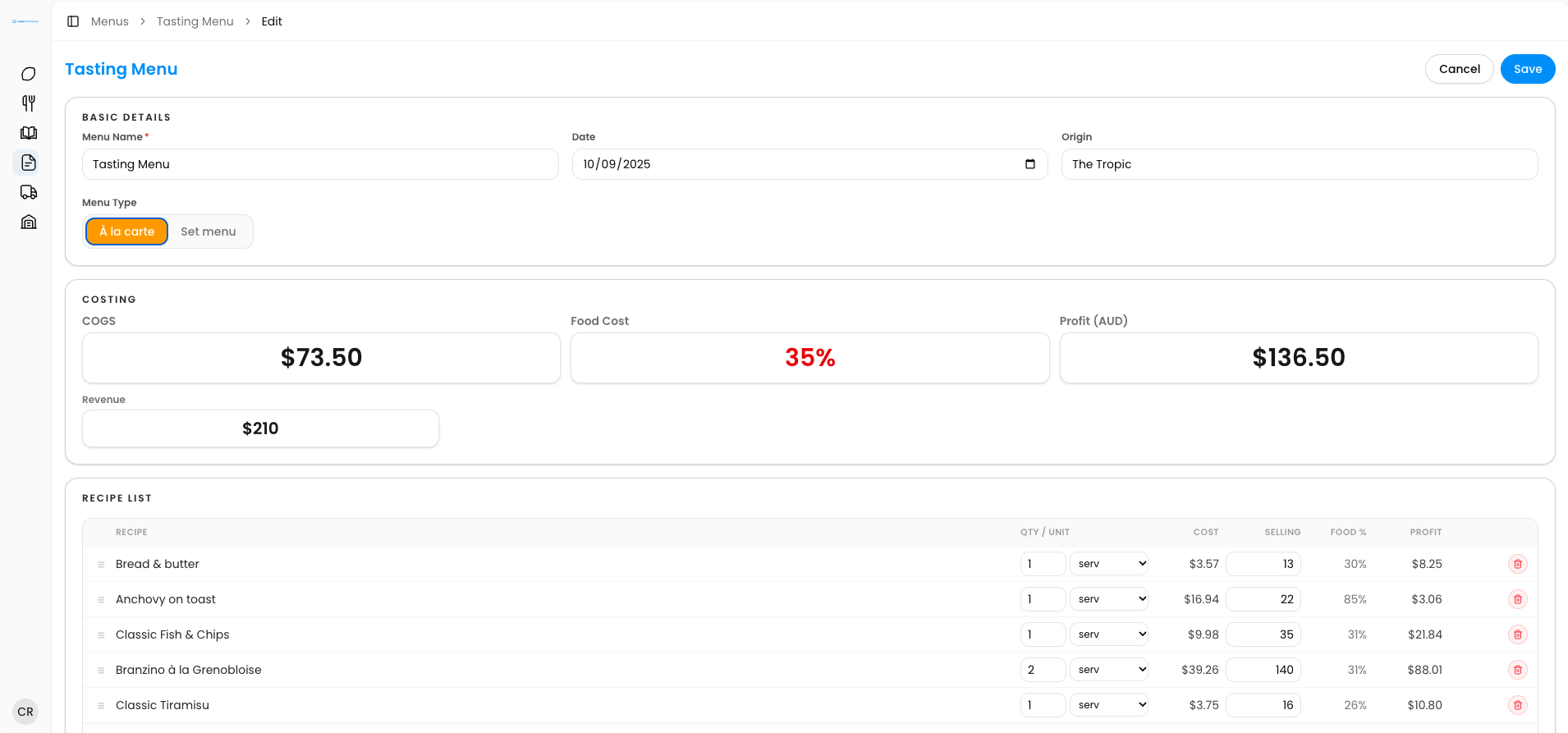
Step one: create the menu
1. Open the Menu section. From the menu on the left-hand side of the screen, click Menu, then click Create Menu.
2. Choose the menu type. Pick À la carte.
3. Give it a name. Choose something that tells you what the menu is, for example Summer 2027.
4. Pick the dates. Use the calendar to choose the dates this menu runs for.
5. Add the origin. This is where the menu is served, for example Johnny’s Pub.
6. Save. Click Save.
Once you save, a costing section appears. There is nothing to fill in here, because the costing comes to life by itself as you start adding recipes.
Step two: add your recipes
1. Add a recipe. In the recipe list section, click Add Recipe, then search for or choose the recipe you want. To add another, click Add Recipe again.
2. Use one serve for each dish. Because an à la carte menu is about what a guest orders, we recommend setting each recipe to one serve: one serve of the Entrecôte Toast, one serve of the Beef Burger, one serve of the classic Fish and Chips. You can change the measurement if you need to, but it is not necessary.
3. Organise with sections. Click Add Section to group your dishes the way a printed menu would. For example, name the first section Starters, the second Mains and the third Sides, or anything you like.
4. Add recipes to a section. Click Add Recipe to this section, then choose the recipe.
5. Save. Click Save when you are happy with it.
Next: Learn how to Managing your à la carte menu, Creating a set menu and Managing your set menu
Questions? Get in touch
Managing your à la carte menu
4 min read
Once your recipes are in, a few simple tools let you shape the menu the way you want it.
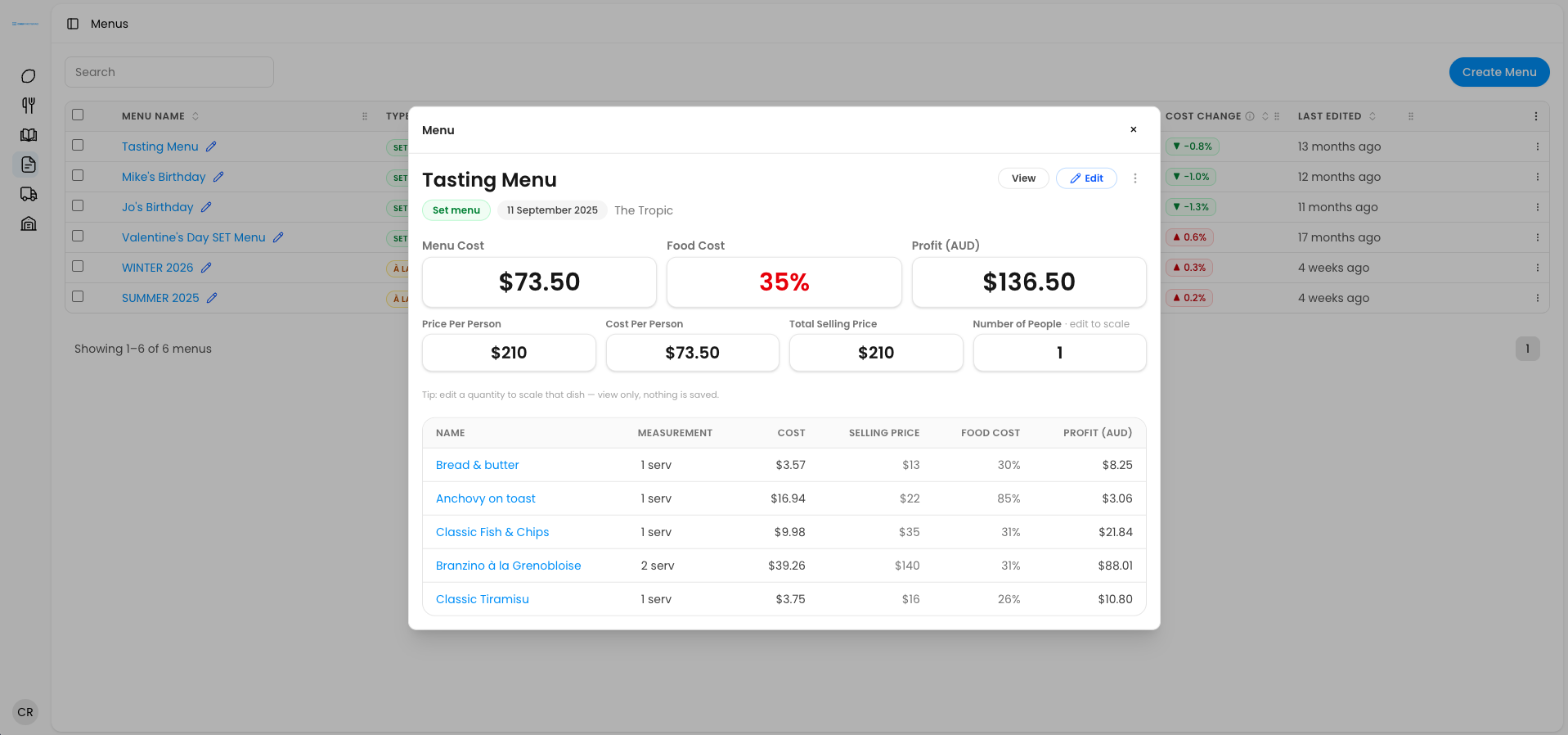
• Delete a recipe: click the red bin icon on the right-hand side of the recipe.
• Reorder recipes: drag a recipe to a new position, within a section or between sections.
• Adjust the selling price: the selling column lets you change a recipe’s price right here. For example, if the Entrecôte Toast is sitting at a 28% food cost and you would like it closer to 25% because it is a starter, raise the price to $30 or $31 and watch the food cost drop. Changing the price here also changes the selling price on the actual recipe, because everything in Chef Notepad stays in sync.
• Extract, print, export and duplicate: just like your recipes, you can extract, print, export and duplicate a menu whenever you need to, so you never have to start from scratch.
• Sharing: sharing a menu as a link is not available just yet, but it is coming soon.
When you save, you will see your menu’s overall food cost, along with your cost of goods (COGS), profit and revenue. Keep in mind that these figures are based on one serve of each dish, so they are a useful guide rather than an exact picture of a real service. The next step shows you how to make them more realistic.
Viewing your à la carte menu and testing different sales scenarios
After you save, Chef Notepad takes you to the view. You can also open it any time by clicking on the menu. From here you can view the menu, edit it, and see your COGS, food cost, profit and revenue, along with every dish and its selling price.
This is where your menu becomes a planning tool. Every dish starts at one serve, but you can change the quantity of each dish to match how it really sells. For example, if you sell about 20 serves of bread each service, set bread to 20. If another dish is not a best-seller and you only sell about 5, set it to 5, and if another sells 15, set that to 15.
Adjusting the quantities works a lot like scaling a recipe. It does not change your actual menu, but it updates your COGS, food cost, profit and revenue in real time, so you can see how profitable your menu really is based on how much you sell of each dish.
• Reset one dish: reset its quantity back to one serve.
• Reset everything: click Reset Quantity to return every dish to its default.
It is a powerful way to play with your best-sellers and see exactly how each dish affects your overall food cost and profit.
Next: Learn how to Creating a set menu and Managing your set menu
Questions? Get in touch
Creating a set menu
4 min read
A set menu is built for catering, weddings, group menus, birthdays and other special events, where you price a whole event for a set number of people rather than individual dishes.
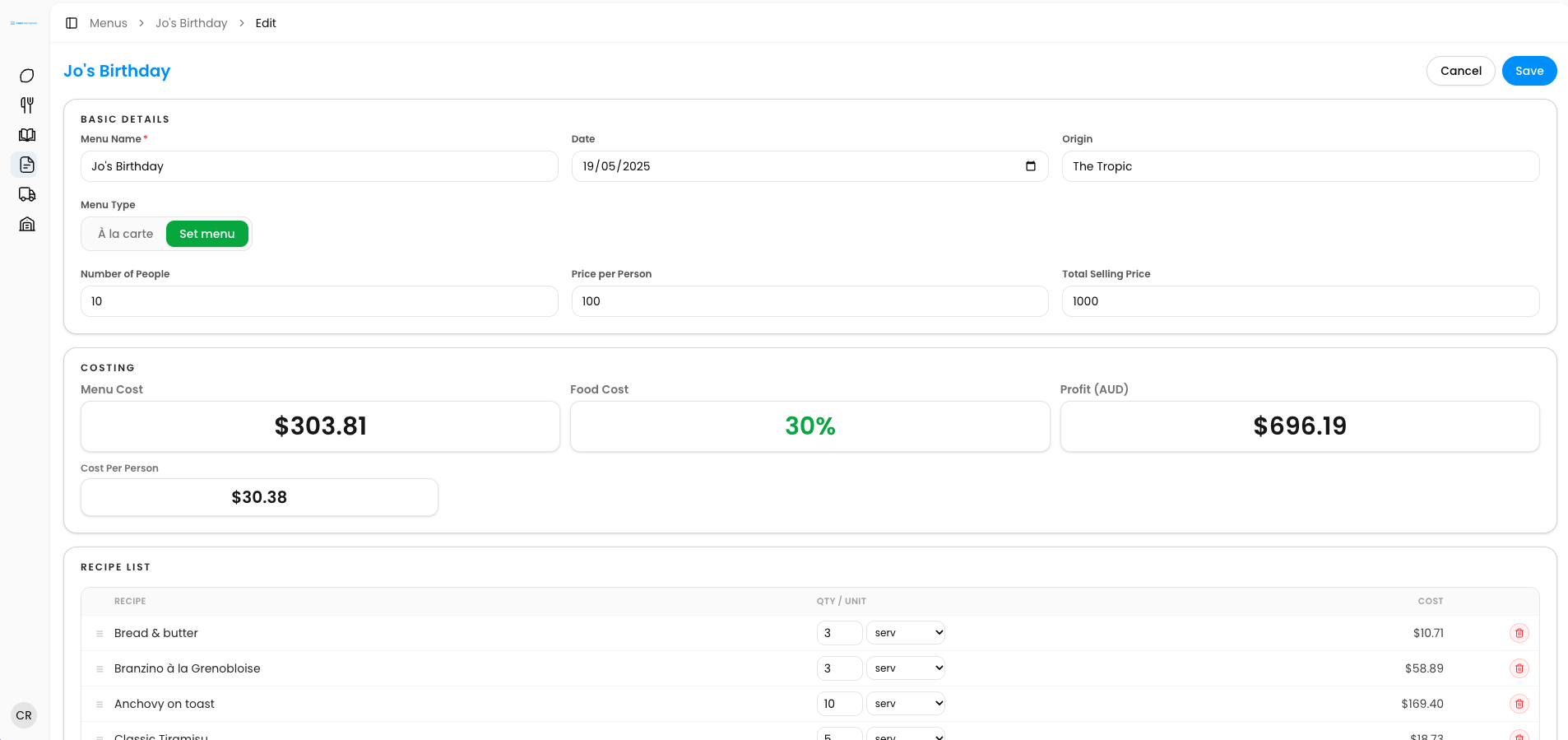
Step one: create the menu
1. Open the Menu section. From the menu on the left-hand side of the screen, click Menu, then click Create Menu.
2. Choose the menu type. Pick Set menu. Three extra boxes appear compared with an à la carte menu.
3. Give it a name. For example, Karen’s Birthday.
4. Pick the date. Use the calendar to choose the date of the event.
5. Add the origin. For example, Johnny’s Pub.
6. Enter the number of people. For example, 10.
7. Enter the price per person. For example, $45. Chef Notepad works out the total selling price for you. You can also do it the other way around: enter the total selling price and Chef Notepad gives you the price per person, based on the number of people.
8. Save. Click Save.
Once you save, a costing section appears showing your menu cost, food cost, profit and cost per person. These update as you add recipes.
Step two: add your recipes
1. Add a recipe. Click Add Recipe, then search for or choose the recipe you want.
2. Set the quantities for your guests. This is the main difference from an à la carte menu, because you are feeding a set number of people. If it is a sharing menu, work out how much of each dish the table needs. For example, for 10 people you might add 4 serves of one dish and 4 serves of another, adjusting each quantity to match what you will actually serve. If everyone receives the same dish, set the quantity to your guest count, for example 10 serves per dish.
3. Organise with sections. Click Add Section to group your dishes, for example Starters, Mains, Sides and Desserts.
4. Add recipes to a section. Click Add Recipe to this section, then choose the recipe.
5. Save. Click Save.
When you save, you will see the full breakdown for your event: your food cost, menu cost, profit and cost per person, based on all the dishes you have added..
Next: Learn how to Managing your set menu
Questions? Get in touch
Managing your set menu
2 min read
Once your recipes are in, a few simple tools let you shape the menu the way you want it.
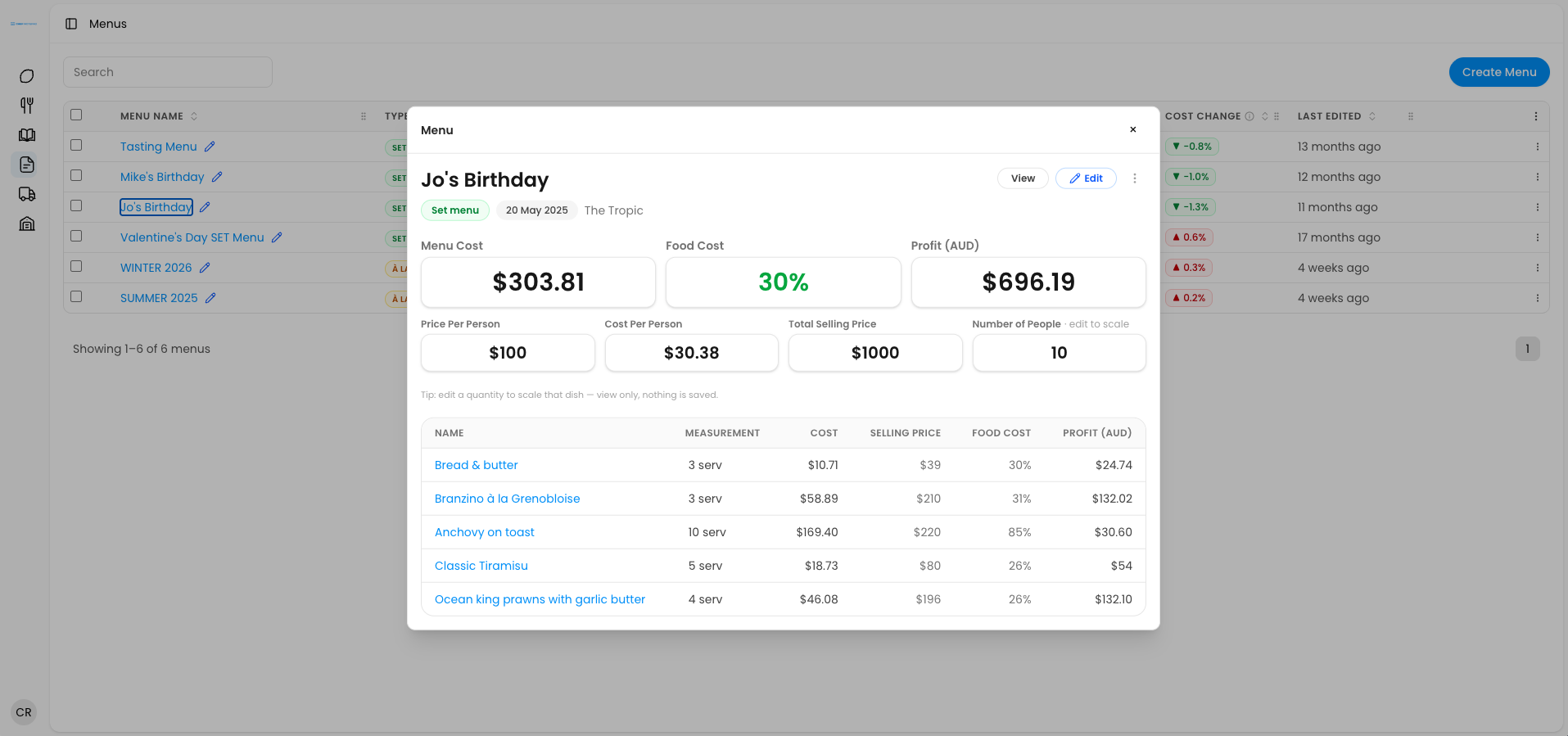
• Delete a recipe: click the red bin icon on the right-hand side of the recipe.
• Reorder recipes: drag a recipe to a new position, within a section or between sections.
• Adjust the selling price: the selling column lets you change a recipe’s price right here. Changing the price here also changes the selling price on the actual recipe, because everything in Chef Notepad stays in sync.
• Extract, print, export and duplicate: just like your recipes, you can extract, print, export and duplicate a menu whenever you need to, so you never have to start from scratch.
• Sharing: sharing a menu as a link is not available just yet, but it is coming soon.
Viewing and scaling your set menu
After you save, Chef Notepad takes you to the view. You can also open it any time by clicking on the menu. From here you can see the same breakdown of food cost, menu cost, profit and cost per person, along with every dish you have added.
The real advantage here is scaling, which works the same way as scaling a recipe. If your guest numbers change, simply update the number of people. For example, change 10 to 16, and Chef Notepad scales every dish to tell you how many serves you need across the whole menu for 16 people. Your food cost percentage stays the same, while your menu cost, profit and cost per person update instantly, so you always have accurate numbers when the event details change.
Questions? Get in touch