
Stocktake
How to do a stocktake in Chef Notepad
A stocktake is the count of everything you have on hand in your kitchen: your ingredients, your recipes and your batch recipes, across every place you store them, such as your fridges, your dry store, your cool rooms, and even your bar. You can run one stocktake for your whole venue, or create separate stocktakes for individual areas, like your cool room, your bar fridge or your dry store, whichever suits the way your kitchen works.
A stocktake is not only for counting what is in storage. It is really a way of putting a dollar value on a group of ingredients and recipes. You can create one to record the value of your wastage, or to work out the value of the staff meals you have given your team, so you have a real figure for it.
Creating a stocktake
2 min read
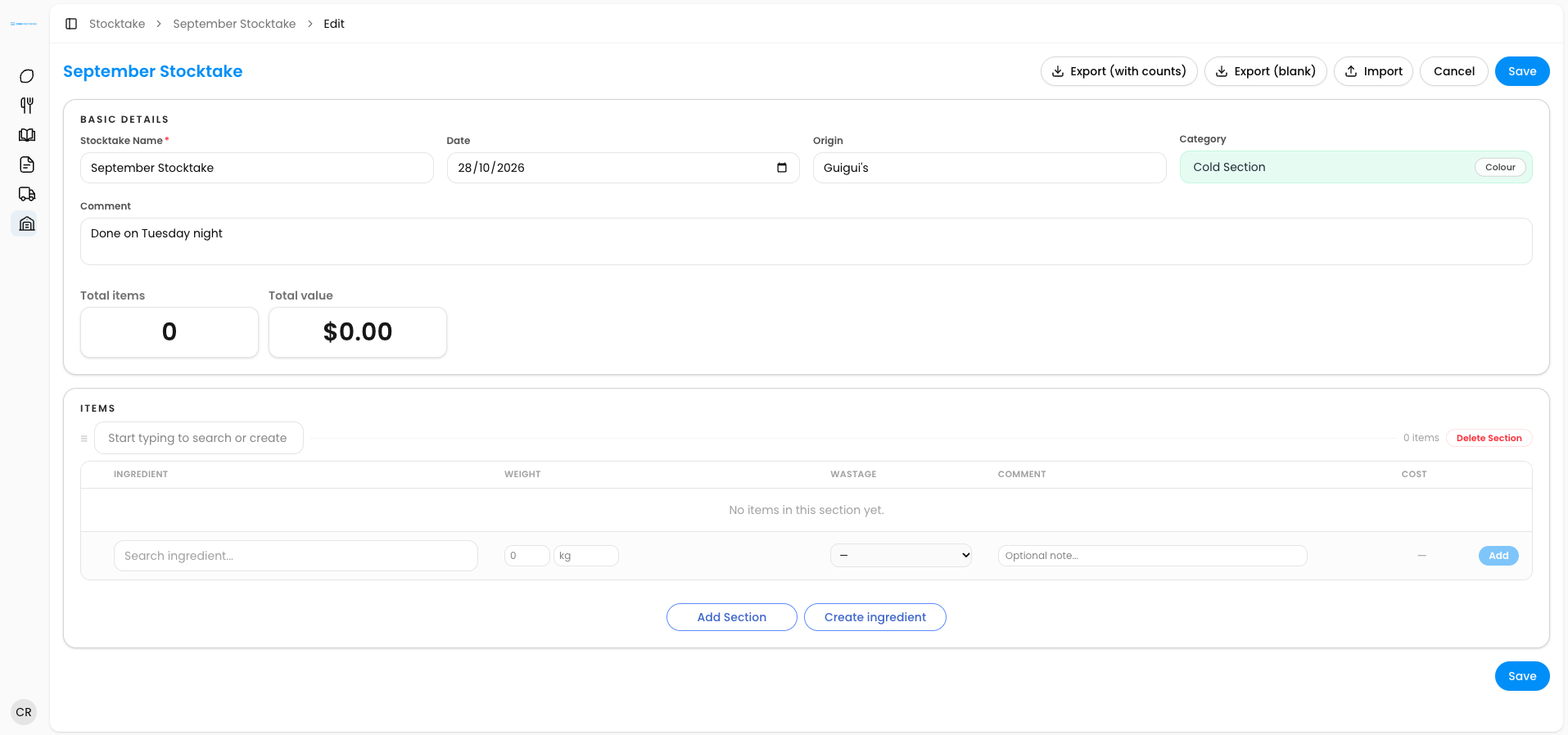
1. Open the Stocktake section. From the menu on the left-hand side of the screen, click Stocktake, then click New Stocktake.
2. Give it a name. For example, August 2027.
3. Pick the date. Choose the date of the count.
4. Add the origin. This is your restaurant or venue.
5. Add a comment (optional). For example, Counted Tuesday evening.
6. Save. Click Save.
Once you save, you will see the total items and total value of your stocktake. Both start at zero, because you have not added anything yet.
Next: Learn how to Adding items to your stocktake, Using the stocktake dashboard, Importing and exporting a stocktake and Sharing and duplicating a stocktake
Questions? Get in touch
Adding items to your stocktake
4 min read
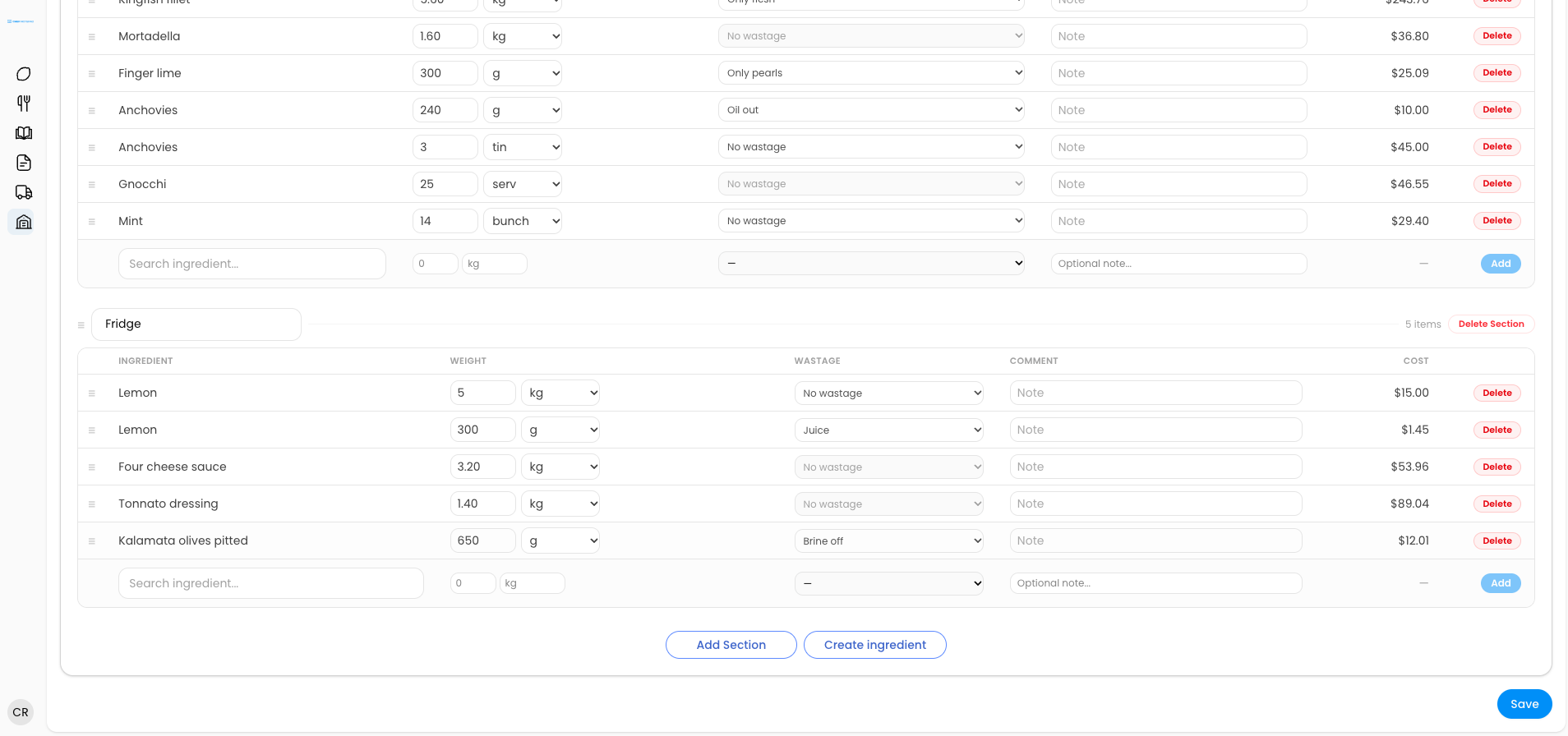
Adding items works the same way as adding ingredients to a recipe. Search for the item, choose the measurement, and add any wastage or comments you need.
Adding items works the same way as adding ingredients to a recipe. Search for the item, choose the measurement, and add any wastage or comments you need.
1. Add an item. Search for the ingredient, recipe or batch recipe you want to count.
2. Choose the measurement. Pick whichever measurement makes sense when you are counting. Many platforms only let you use the unit you buy an ingredient in, but in Chef Notepad you can choose any measurement. You can also add sub-recipes with their own measurements.
3. Add wastage and comments (optional). Record any wastage, and add a comment if it helps.
4. Create a missing ingredient on the spot. If the ingredient is not in your system yet, click the pencil icon to create it right here, exactly as you would while creating a recipe.
5. Add as many items as you need. Repeat for everything you are counting.
6. Save. Click Save and you will see your total value and total items.
Organising your stocktake with sections
If your stocktake covers the whole kitchen, create sections to keep everything organised, such as Cool Room, Cold Section, Pastry Section and Bar. If you would rather count one area at a time, you can create a separate stocktake for just your cool room, your bar fridge or your dry store.
Counting the same ingredient in different places
The same ingredient often turns up in several places, and you can enter each one separately. For example, you might have one box of lemons in the cool room, two loose lemons in the front fridge, and 300 grams of freshly squeezed lemon juice in the pastry section. Add all three and Chef Notepad groups them together. What matters in a stocktake is not how each line looks, it is that the total value is correct.
Next: Learn how to Using the stocktake dashboard, Importing and exporting a stocktake and Sharing and duplicating a stocktake
Questions? Get in touch
Using the stocktake dashboard
2 min read
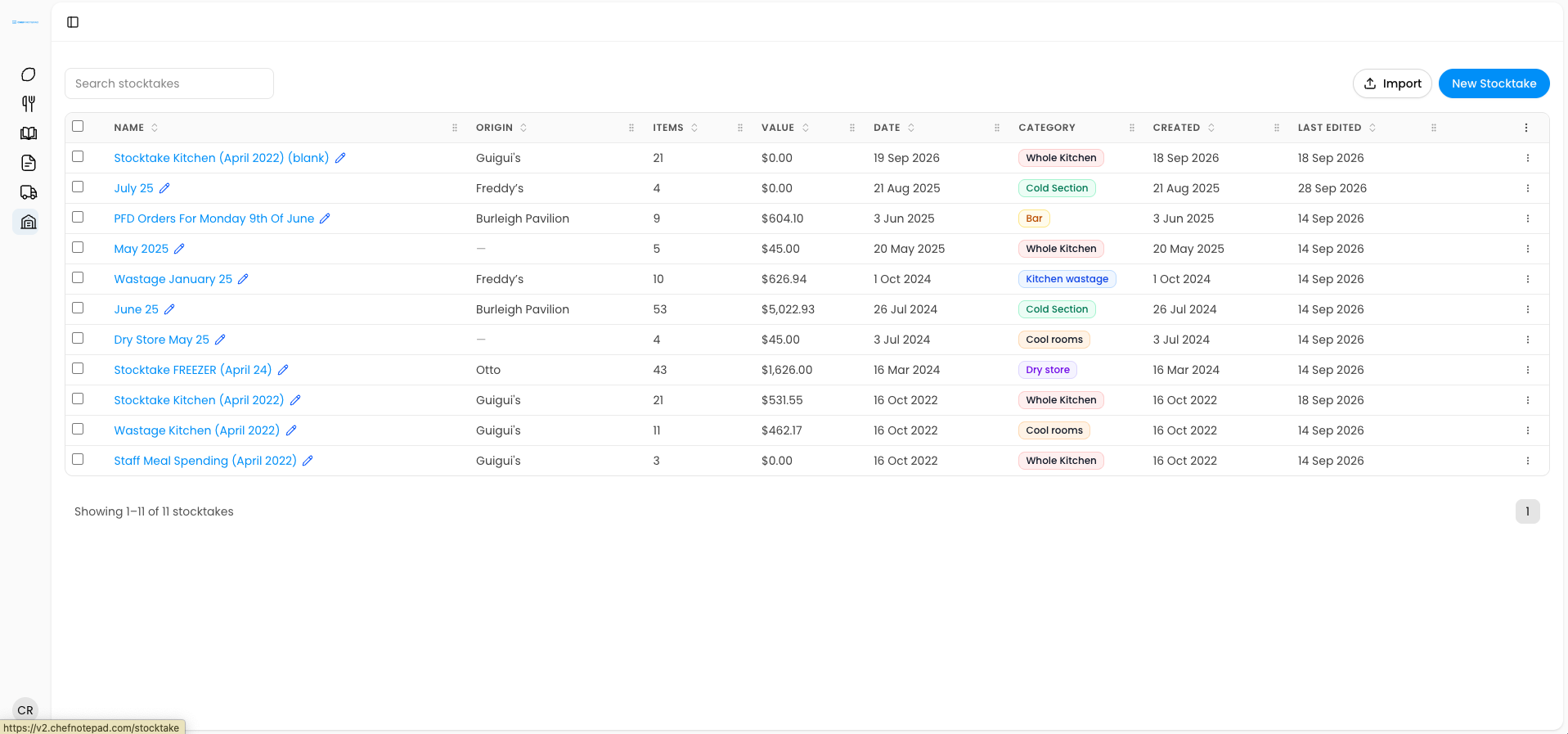
The dashboard gives you an overview of all your stocktakes in one place.
• Reorder columns: drag the column headers into the order you prefer.
• Choose your columns: pick which columns you want to show and which to hide.
• Delete stocktakes: delete a single stocktake, or select several and delete them all at once.
• Import a stocktake: click Import to bring in a stocktake from a spreadsheet (see below).\
Next: Learn how to Importing and exporting a stocktake and Sharing and duplicating a stocktake
Questions? Get in touch
Importing and exporting a stocktake
3 min read
Stocktake is a complicated job, and everyone has their own habits. Some people like working on a spreadsheet, and some like working directly in Chef Notepad. So there are several ways to do it, and you can choose whichever suits you best.
Exporting a stocktake
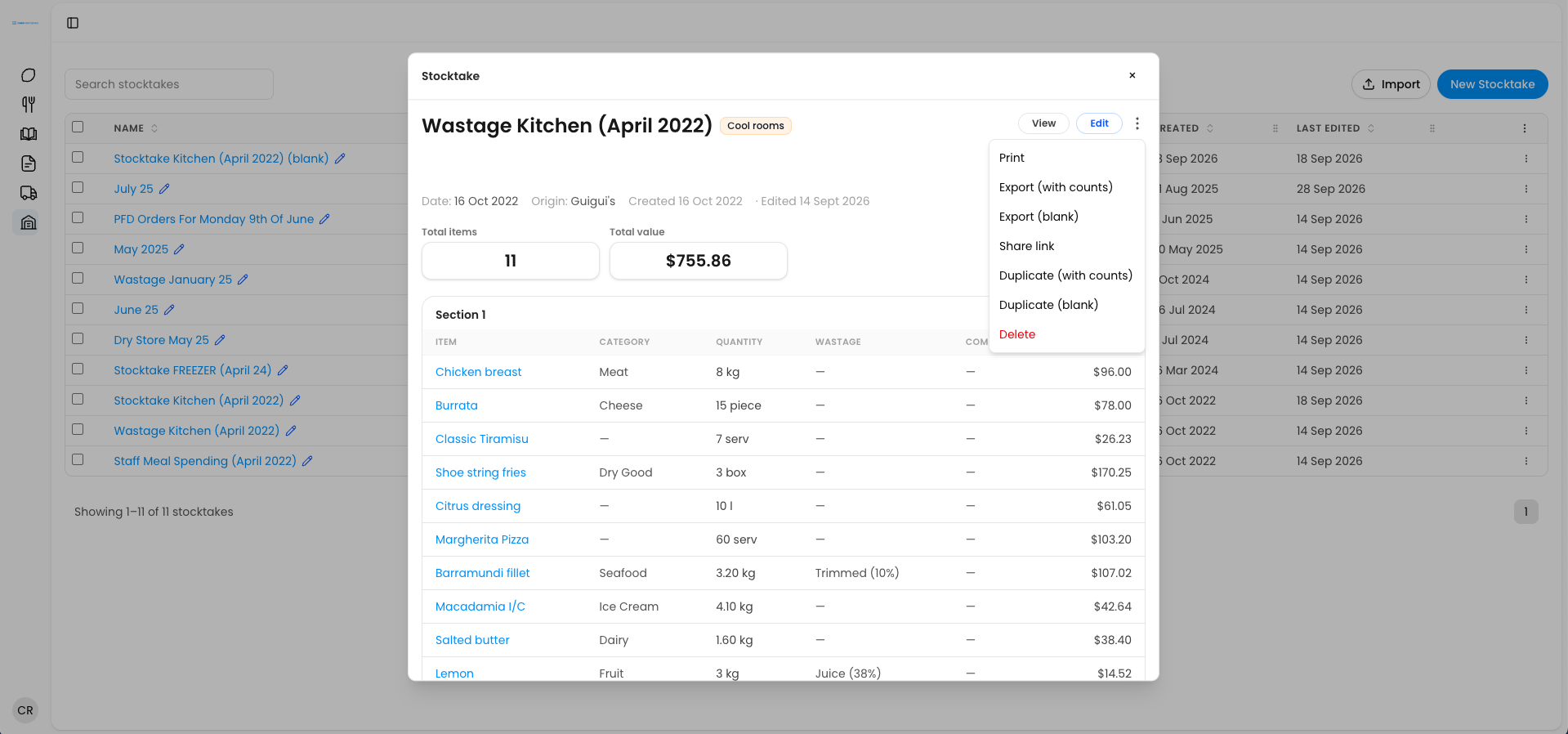
Click the three dots on a stocktake to export it. Either option downloads as a spreadsheet.
• Export with count: includes all of your data, which is handy if you need to give it to your accountant.
• Export blank: gives you the stocktake without counts. Many chefs still like to work on spreadsheets, and this works as a template that you fill in for your next stocktake.
Importing a stocktake
1. Fill in your spreadsheet. Complete the blank spreadsheet you exported.
2. Go to the stocktake dashboard. Open the main Stocktake page.
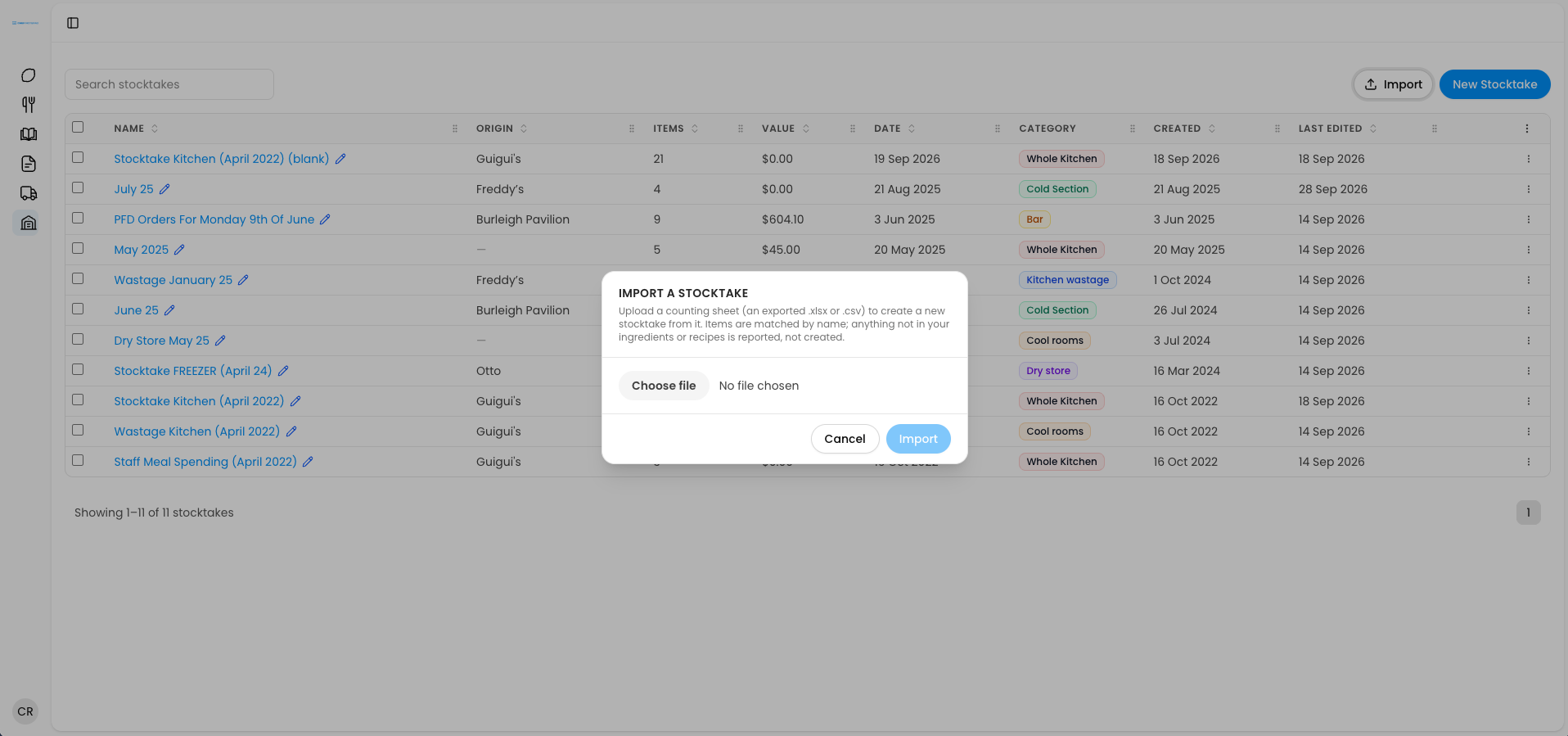
3. Click Import. Choose the file you just filled in, then import it.
Chef Notepad creates the whole stocktake for you, including the sections and the wastage.
Importing into an existing stocktake
You can also import while you are editing a stocktake. That means you can edit a stocktake, export it with counts, work on it in a spreadsheet, then import it straight back into the same stocktake.
Next: Learn how to Sharing and duplicating a stocktake
Questions? Get in touch
Sharing and duplicating a stocktake
2 min read
Sharing a stocktake
Click the three dots and choose Share link. It works exactly like sharing a recipe. You choose how long the link lasts, generate it, and send it on. You can revoke the link at any time.
Duplicating a stocktake
Click the three dots to duplicate a stocktake, either with counts or blank.
• Duplicate with count: creates an exact copy of the stocktake, counts included.
• Duplicate blank: creates a copy with the same items but no counts. This is what we recommend if you have a fairly standard list of stock in your kitchen.
With a blank copy, you or your team can enter the counts on a phone, a tablet or a computer, filling in the number next to each item. Chef Notepad saves after every item you enter, so several people can work on the same stocktake at the same time.
Stocktake is never going to be a quick job, but it can be easier. These options are here so you can do it the way that works best for you.
Questions? Get in touch